What is a Wikipedia Watchlist?
Wikipedia watchlist is a feature that allows editors to track changes to specific pages they're interested in. It's part of the MediaWiki platform that powers Wikipedia, and it's been a core tool since the early 2000s. The watchlist system processes over 500,000 edits daily across all language editions, helping editors monitor content quality and detect vandalism quickly.
Without watchlists, editors would have to manually check every page they care about. That's impossible given Wikipedia's scale. With over 60 million articles, the system automatically notifies users about edits to their monitored pages. This saves time and ensures timely responses to issues like misinformation or vandalism.
Setting up your watchlist
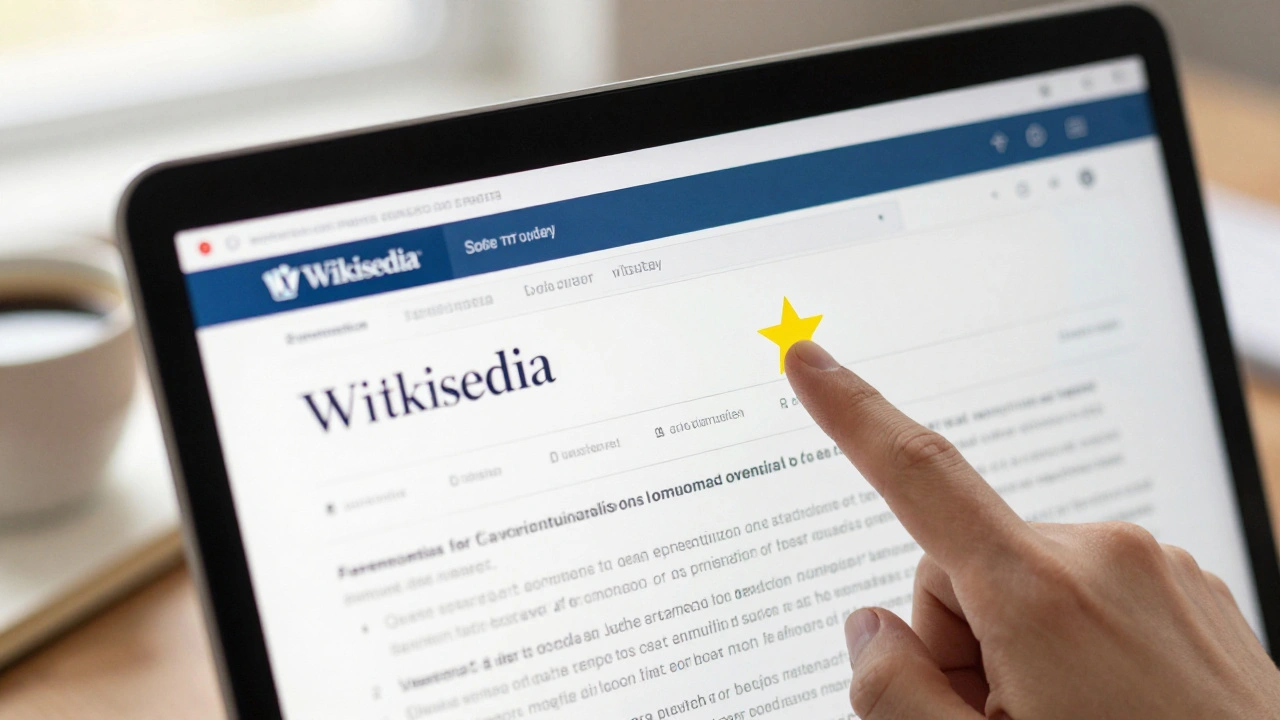
Adding a page to your watchlist is simple. Go to any Wikipedia article. At the top-right corner of the page, you'll see a star icon. Click it once to add the page to your watchlist. The star turns yellow, confirming it's now tracked. You can view your watchlist by clicking your username in the top menu and selecting 'My Watchlist'.
For example, if you edit the 'Climate Change' page regularly, adding it to your watchlist means you'll see any new edits immediately. This is especially useful for articles that attract frequent changes or are prone to vandalism.
Here's how to add multiple pages:
- Navigate to each article you want to monitor
- Click the star icon on each page
- Check your watchlist under 'My Watchlist' to confirm all pages are listed
Configuring notification settings
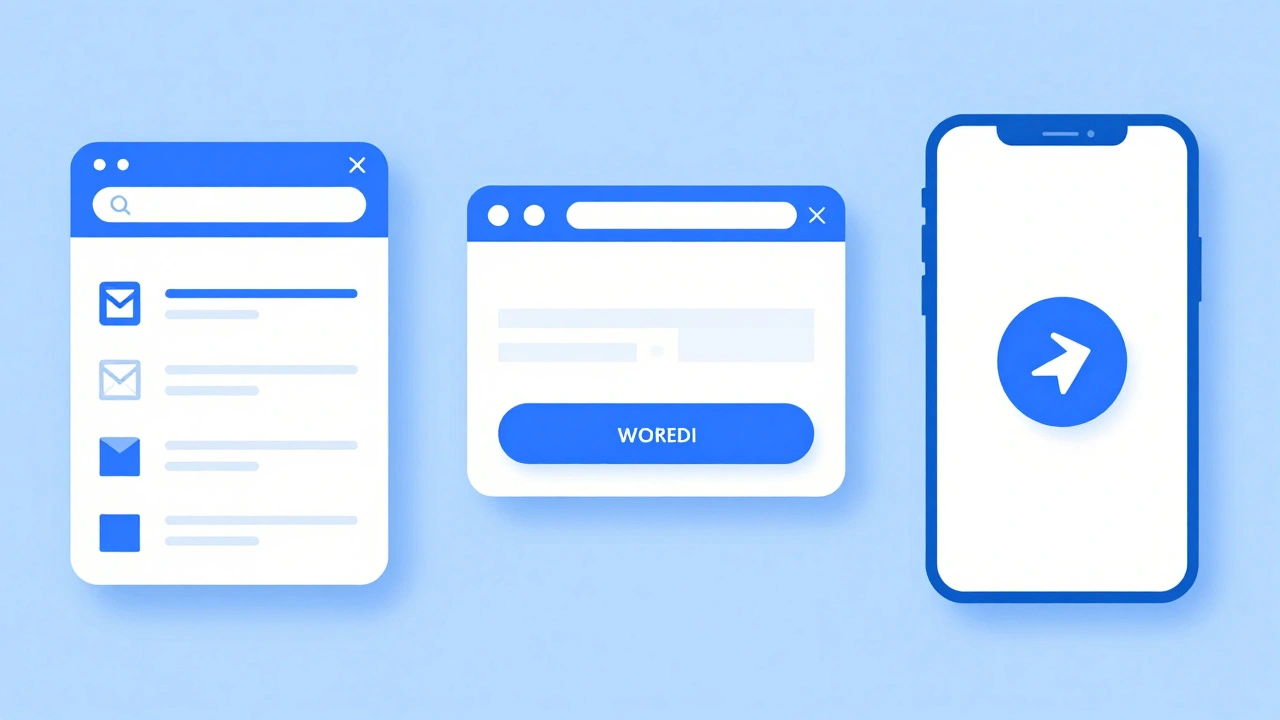
Notifications tell you when edits happen on your watched pages. You can choose how you receive these alerts. Go to Preferences > Notifications in your account settings. Here you'll find options for email, on-site alerts, and mobile notifications.
For instance, if you're active during the day, you might prefer on-site alerts. If you're away from the computer, email notifications ensure you don't miss critical changes. You can also set thresholds like 'only notify for major edits' or 'ignore minor edits' to reduce noise.
| Method | Pros | Cons |
|---|---|---|
| Delivered directly to inbox | May be filtered as spam | |
| On-site alerts | Immediate in browser | Requires checking the site |
| Mobile app | Push notifications | Only for specific apps |
How watchlists combat vandalism
Vandalism is a constant challenge on Wikipedia. Malicious edits can spread misinformation quickly. Watchlists are crucial for catching these changes early. When a user edits a watched page, the system sends an alert. Editors can then review and revert harmful changes within minutes.
For example, a 2024 study by the Wikimedia Foundation found that pages with active watchlists had a 90% faster vandalism resolution rate compared to unmonitored pages. Editors monitoring high-traffic articles like 'United States' or 'COVID-19' can spot and fix false claims almost immediately.
Watchlists also integrate with tools like ClueBot NG, an automated bot that flags suspicious edits. This combination of human and automated monitoring makes Wikipedia's content more reliable.
Advanced watchlist features
Experienced editors use advanced watchlist features to stay efficient. One key tool is Watchlist Expiry, which automatically removes pages from your watchlist after a set time. This prevents clutter from pages you no longer need to monitor.
You can also filter watchlist views. For instance, show only edits from registered users, or hide minor edits. This helps focus on significant changes. Another feature is the ability to watch entire categories. If you're interested in all articles about 'Climate Science', you can add the category to your watchlist instead of each page individually.
For example, a WikiProject on 'Medical Articles' might have members watch all related pages. They set up custom filters to see only edits from new users, ensuring high-quality medical content.
Common mistakes to avoid
New editors often make mistakes with watchlists. One common error is watching too many pages. If you monitor hundreds of articles, notifications become overwhelming. It's better to watch only pages you actively edit or care about.
Another mistake is ignoring notification settings. If you set email notifications but don't check your inbox, you'll miss alerts. Similarly, not configuring filters means you might get too many minor edit notifications.
Also, some editors forget to remove pages from their watchlist after they're no longer relevant. This leads to clutter. Regularly review your watchlist and remove pages you no longer need to monitor.
Frequently Asked Questions
How do I add a page to my watchlist?
To add a page to your watchlist, go to any article on Wikipedia. At the top-right corner of the page, you'll see a star icon. Click it once to add the page to your watchlist. The star will turn yellow, confirming the page is now tracked. You can view your watchlist by clicking your username in the top-right corner and selecting 'My Watchlist' from the dropdown menu. This list shows all pages you're monitoring, along with recent edits.
Can I receive notifications for talk page edits only?
Yes. When configuring notification settings, you can choose to receive alerts specifically for talk page edits. Go to Preferences > Notifications, then under 'Watchlist notifications', select 'Only for talk page edits'. This is useful for editors who monitor discussions rather than article content changes.
What happens if I watch too many pages?
Watching too many pages can overwhelm you with notifications. The system may slow down, and you might miss critical alerts. Experts recommend watching no more than 50-100 pages. If you need to monitor more, use category watches or set filters to reduce noise. Regularly review and prune your watchlist to keep it manageable.
How do I clear my watchlist?
To clear your watchlist, go to 'My Watchlist' in your account settings. At the top of the page, you'll see a 'Clear watchlist' button. Clicking this removes all pages from your watchlist. Alternatively, you can remove individual pages by clicking the star icon again on each page to unwatch them. Be cautious-clearing your watchlist means you won't receive alerts for those pages anymore.
Are watchlists visible to other users?
No, watchlists are private. Other users cannot see which pages you're monitoring. This privacy feature ensures editors can track changes without revealing their interests or editing patterns. The only exception is if you're part of a WikiProject where members share watchlists for collaboration, but even then, individual watchlists remain private unless explicitly shared.