Ever wondered how a site with millions of pages manages to stay accurate when anyone can edit it at any second? It isn't magic-it's a massive, coordinated effort centered around a real-time stream of data. If you've ever felt overwhelmed by the sheer volume of edits happening on the platform, you're not alone. The Wikipedia Community Portal serves as the heartbeat of the site, but the Recent Changes feed is where the actual work happens. Whether you want to stop vandalism in its tracks or find new articles to improve, knowing how to navigate this firehose of information is the only way to move from a casual editor to a power user.
- The Recent Changes feed is a real-time log of every single edit made across the project.
- Filtering allows you to ignore minor tweaks and focus on high-impact changes.
- Patrolling is the act of reviewing these changes to revert errors or vandalism.
- The Community Portal provides the social context and guidelines for these technical tools.
The Engine Under the Hood: What is Recent Changes?
At its core, Recent Changes is a specialized page that lists the most recent edits made to a wiki in reverse chronological order. Imagine a digital ledger that never sleeps. Every time someone fixes a typo, adds a source, or unfortunately, deletes a whole section of a page, it pops up here. For a new user, it looks like a blur of text, but for an experienced editor, it's a map of where the community's attention is currently focused.
This feed doesn't just show you what changed; it tells you who did it and why. Each entry includes the editor's username or IP address, the size of the change in bytes, and a summary of the edit. If you see a change of -5,000 bytes without a clear explanation, that's a red flag. It usually means someone just wiped out a huge chunk of an article, and that's where the community's "patrolling" instinct kicks in.
Navigating the Community Portal Context
While the feed is technical, the Community Portal is the central hub where Wikipedia editors coordinate their efforts, discuss policy, and organize cleanup drives. You can't just dive into the feed blindly; you need the context provided by the portal. This is where you'll find the "Village Pump" for discussions and the guidelines on how to handle problematic edits without starting an edit war.
Think of the Community Portal as the headquarters and the Recent Changes feed as the field reports. If you see a surge of weird edits on a specific topic, the Portal is where you'll find out if there's a coordinated effort to improve that topic or if the site is under a targeted attack. Understanding the relationship between these two is key to avoiding the common mistake of reverting a legitimate, though drastic, rewrite of a page.
Filtering the Noise: How to Actually Use the Feed
If you just refresh the page, you'll be buried in "minor edits"-things like changing "color" to "colour" or fixing a comma. To make the feed useful, you have to use the filter settings. By checking the "Hide minor edits" box, you instantly remove a huge percentage of the fluff, leaving only the substantive changes.
For those who want to get serious, the RecentChanges tool can be customized further. You can filter by namespace, which allows you to ignore "Talk" pages and focus only on the actual encyclopedia articles. You can also filter out users on the "autoconfirmed" list, which helps you spot errors made by brand-new accounts who might not understand the formatting rules yet.
| Filter Option | What it does | Best for... |
|---|---|---|
| Hide Minor Edits | Removes edits marked as 'minor' by the user | Reducing noise and focusing on content shifts |
| Namespace: Main | Shows only changes to actual articles | Ignoring discussions and user page updates |
| Hide Autoconfirmed | Hides edits from established users | Spotting vandalism from new or anonymous accounts |
| Limit by Size | Highlights very large additions or deletions | Finding massive page wipes or spam injections |

The Art of Patrolling: Identifying Vandalism
Patrolling is essentially the act of quality control. When you're scanning the feed, you're looking for patterns. A classic example of vandalism is the "blanking" of a page, where an editor removes everything and leaves the page empty. In the Recent Changes feed, this appears as a massive negative byte count.
Another common red flag is "test edits." These are changes where someone just types "Hello?" or "test" into an article to see if it works. While harmless, they clutter the site and need to be reverted. The most dangerous edits, however, are the subtle ones-incorrect facts added to a biography or misleading health advice. These require you to actually click through to the article and compare the new version with the previous one using the "diff" tool.
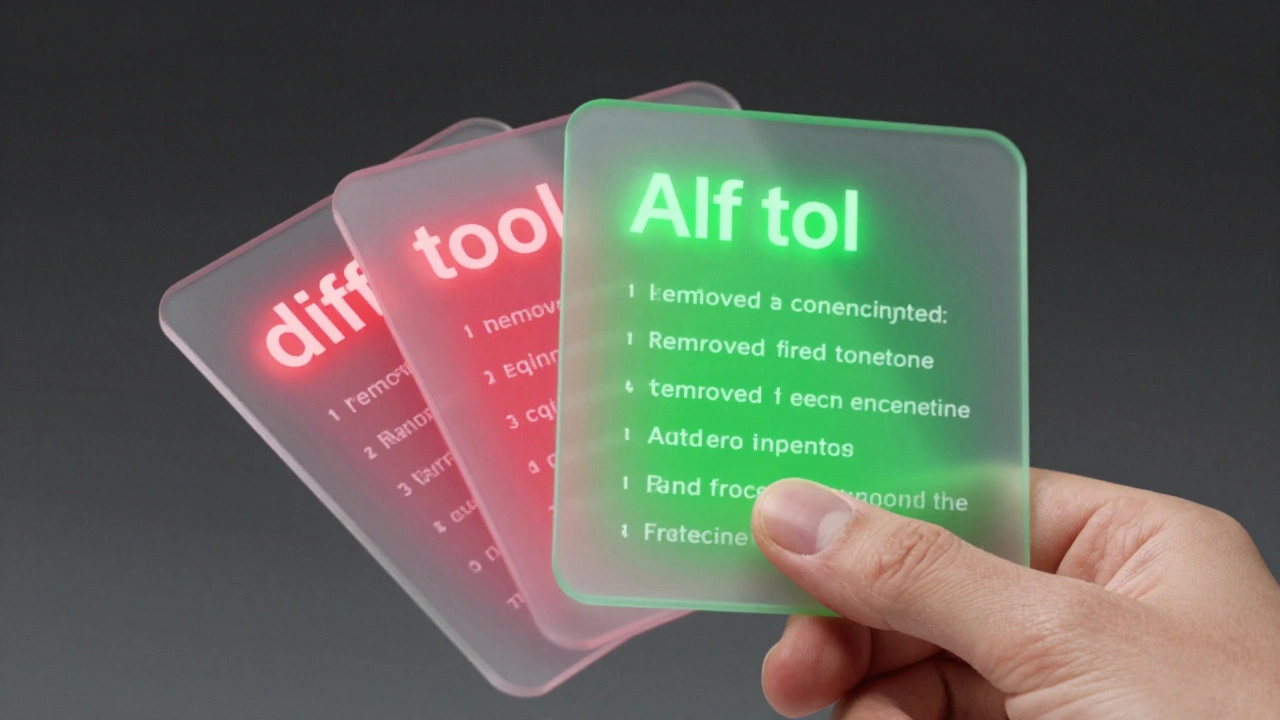
The Diff tool is a comparison view that highlights exactly which words were added (usually in green) and which were removed (usually in red). Mastering the diff is the difference between a clumsy revert and a precise correction. If you see a user changing a date from 1985 to 1986, you don't just undo the whole edit; you check the source and only revert if the change is demonstrably wrong.
Advanced Tools: Moving Beyond the Basic Feed
Once the standard page feels too slow, most power users move to RecentChanges a-la-carte tools like HTheir or specialized patrolling scripts. These tools allow you to see a user's entire history across the site instantly. If you see one suspicious edit, you can check if that user has spent the last hour sabotaging other pages. This is a critical step in determining whether to simply revert an edit or to suggest a full block of the account to an administrator.
Another powerhouse tool is the Watchlist, which is a personalized feed of articles you've specifically asked to monitor. While Recent Changes is a global view, the Watchlist is your personal neighborhood. By combining both, you can keep an eye on your favorite topics while still helping the broader community by patrolling the global feed during peak hours.
Common Pitfalls for New Patrollers
The biggest mistake new editors make is "over-reverting." This happens when someone sees a change they don't like or don't understand and immediately undoes it. This often leads to edit wars. Before you hit revert, ask yourself: "Is this objectively wrong, or is it just a different way of phrasing something?" If it's the latter, the correct move is to go to the Talk page and start a civil discussion.
Another trap is ignoring the "Edit Summary." Many users take the time to explain why they made a change (e.g., "Updated population stats based on 2025 census"). If you ignore the summary and revert the change, you're not only wasting the other editor's time but potentially removing accurate information. Always read the summary before acting; it's the fastest way to tell a helpful contributor from a bot or a vandal.
Does patrolling Recent Changes require special permissions?
No, any registered user can view the Recent Changes feed and revert edits. However, certain tools like "rollback" (which reverts multiple edits in one click) are only available to users who have reached a specific edit count and account age, usually becoming "autoconfirmed."
What is the difference between a revert and an undo?
An "undo" simply removes the most recent change, but if other people have edited the page since then, it can create a messy version history. A "revert" usually involves returning the page to a specific previous version, which is much cleaner for the site's database and easier for other editors to track.
How do I handle a user who keeps vandalizing pages?
If a user is repeatedly causing damage, don't just revert the edits. You should report them on the Administrator's noticeboard or use the appropriate reporting tool in the Community Portal. Providing a list of the affected pages and the user's IP or username helps admins take action quickly, such as temporary or permanent blocks.
Can I filter the feed to only show specific topics?
The standard feed doesn't have a "keyword search" for all changes, but you can use external tools or specific wiki-scripts that allow you to monitor changes containing specific words. Alternatively, adding pages related to that topic to your Watchlist is the most effective way to monitor a specific subject.
Why are some edits highlighted in different colors?
Color coding usually depends on the tools or scripts you're using. In some views, edits by administrators are highlighted differently, or edits that have already been "patrolled" (marked as reviewed) will appear dimmed to help you focus on the changes that haven't been seen yet.
Next Steps for Aspiring Editors
If you're feeling confident, start by spending 15 minutes a day in the Recent Changes feed. Focus on a single namespace-like "Main"-and try to spot three errors or instances of vandalism. Don't rush; use the diff tool to be absolutely sure before you revert. As you get faster, you'll start to notice the "rhythm" of the site-when the most edits happen and which types of pages are most prone to attack.
Once you've mastered the basics, head back to the Community Portal and look for "WikiProjects." These are groups of editors focusing on a specific subject (like Biology or 20th-century History). By joining a project, you can move from general patrolling to specialized quality control, where your specific knowledge can help distinguish a subtle factual error from a legitimate update. This transition from generalist to specialist is how the most influential contributors on the site are made.