Editing Wikipedia on your phone isn’t just possible-it’s becoming the default way millions of people contribute. Whether you’re fixing a typo on a bus, adding a citation from a library, or updating a birth date during a coffee break, your mobile device is now a full-featured editing station. But most people don’t know how to do it right. They tap around, get lost in menus, or accidentally break formatting. This guide cuts through the noise. You’ll learn exactly how to edit Wikipedia on your phone, avoid common mistakes, and make real contributions that stick.
Why Edit Wikipedia on Mobile?
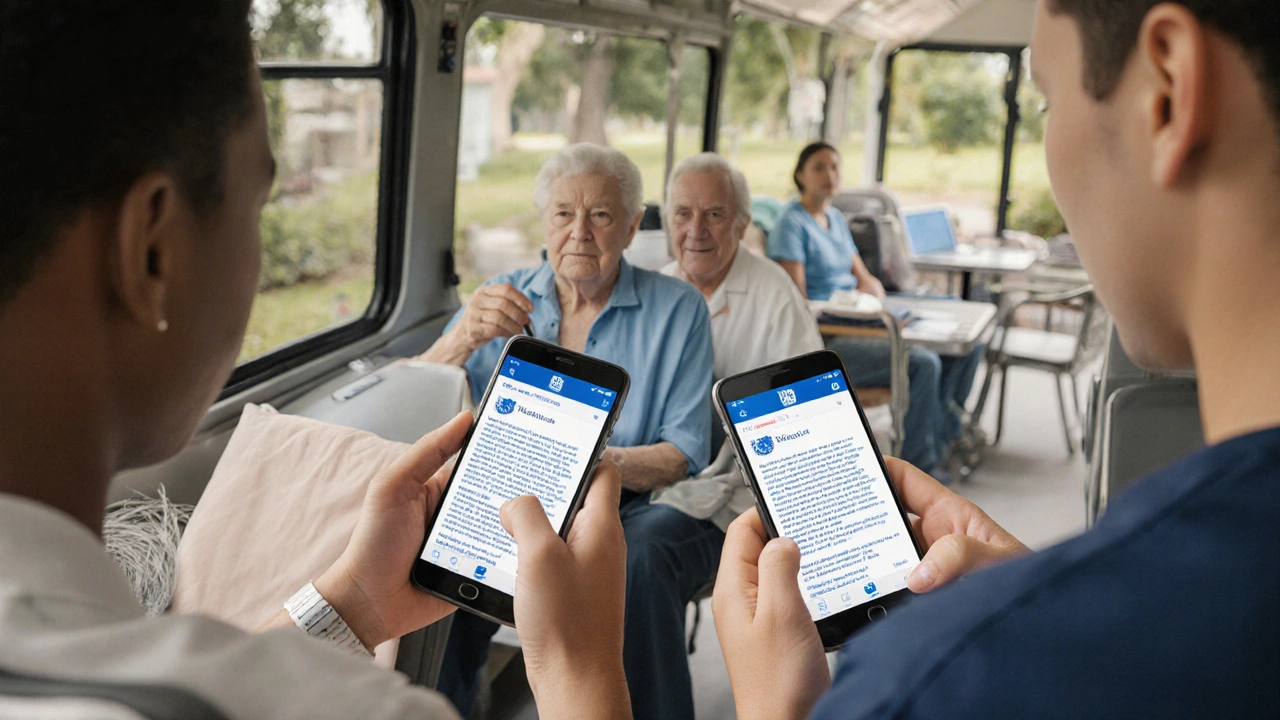
Over 40% of all Wikipedia views now come from mobile devices. That’s not just readers-it’s editors too. In 2024, mobile edits accounted for nearly 30% of all edits made globally. People aren’t just reading Wikipedia on their phones; they’re fixing it. A student in Lagos corrects a date on a historical figure’s page. A retiree in Chicago adds a source to a local park’s entry. A nurse in Manila updates a medical term after a shift. These aren’t outliers-they’re the new normal.
Mobile editing removes barriers. You don’t need a laptop. You don’t need to wait until you get home. You see something wrong? Fix it now. The platform is built for this. The Wikipedia app, the mobile website, and even voice assistants now support direct editing. The question isn’t whether you should edit on mobile-it’s why you haven’t started yet.
How to Start Editing on Your Phone
There are two ways to edit Wikipedia on your phone: through the mobile website or the official Wikipedia app. Both work, but they serve different needs.
Option 1: Mobile Website
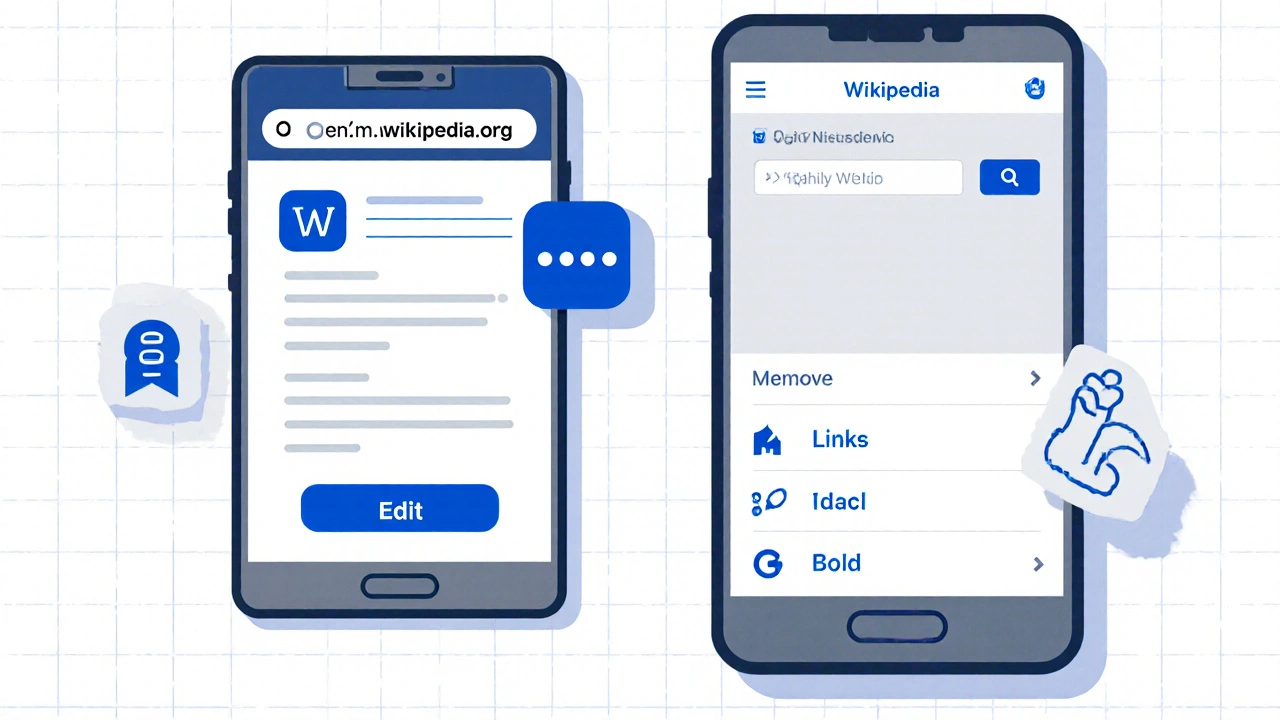
Open any browser-Safari, Chrome, Firefox-and go to https://en.m.wikipedia.org. Search for the article you want to edit. Scroll to the bottom. Tap the Edit button. That’s it. You’re in the editor.
The mobile web editor is clean. It shows a plain text box with simple formatting buttons: bold, italic, links, headers. No clutter. No confusing menus. You can type directly, paste from your clipboard, or even use voice-to-text. Tap Preview to see how it looks. Tap Save and add a brief edit summary like “Fixed spelling in first paragraph” or “Added source from WHO report.”
Option 2: Wikipedia App (iOS and Android)
The official Wikipedia app is free and available in both the App Store and Google Play. Download it, sign in with your Wikipedia account, and open any article. Tap the three dots in the top-right corner. Select Edit. The app gives you the same editor as the mobile site-but with a few extras.
It remembers your last edits. It suggests articles you might want to fix based on your history. It even lets you flag articles that need cleanup with one tap. If you’re editing often, the app is faster. If you’re just fixing one thing, the mobile site is quicker.
What You Can and Can’t Edit
Not every article is open for editing. Some are protected because they’re high-profile or frequently vandalized. If you tap Edit and see a message saying “This page is protected,” you can’t edit it directly. But you can still help.
Go to the article’s Talk page (tap the speech bubble icon). Type a polite note: “Hi, I noticed the date on John Smith’s birth is listed as 1942, but multiple sources say 1941. Could someone update it?” Someone with edit rights will see it and fix it. This is called a request for edit-and it’s a valid, respected way to contribute.
Also, avoid editing articles about yourself, your company, or your family. Wikipedia’s rules are strict here. Even if your info is correct, it looks like a conflict of interest. Use the Talk page instead. Say, “I’m a relative of this person and have access to verified documents. Could an editor help update this?” That’s how real changes happen.
How to Format Correctly on Mobile
Formatting on mobile is simple-but easy to mess up if you’re not careful.
- Links: Highlight text, tap the link icon, paste the full URL (like https://www.cdc.gov/coronavirus). Don’t just type the name. The system will auto-format it.
- References: Tap the citation button. Choose “Add citation.” You’ll see options: URL, book, journal. Fill in what you have. If you’re citing a website, paste the full address. If it’s a book, type the title and author. The app will generate the correct format.
- Bold and italics: Use them only where Wikipedia style requires it. Book titles in italics. Names of organizations in bold only if they’re the subject of the article. Don’t bold random words.
- Lists: Use bullet points for unnumbered lists. Use numbers only if order matters (like steps in a process).
Here’s a real example: Someone edited a page about the Great Lakes and wrote “Lake Superior is the largest lake.” That’s true-but incomplete. The correct version: “Lake Superior is the largest of the Great Lakes by surface area, covering 82,100 km².” Notice the italics, the metric unit, and the specific number. That’s the kind of edit that improves the article.
Common Mistakes to Avoid
Most mobile edits get reverted-not because they’re wrong, but because they’re sloppy. Here’s what to watch out for:
- Missing citations: Any factual claim-dates, numbers, names-needs a source. If you can’t find one, don’t add it. Say so on the Talk page.
- Over-editing: Don’t rewrite entire paragraphs. Fix one thing at a time. Tiny edits are more likely to be accepted.
- Spelling errors: Mobile keyboards auto-correct. Double-check. “Califronia” isn’t fixed just because your phone thinks it’s “California.”
- Adding opinions: “This movie is boring” or “This politician is corrupt” doesn’t belong. Stick to facts. Cite reviews, polls, court records.
- Ignoring edit summaries: Never save without a summary. “Fixed typo” is fine. “Updated info” is too vague. Be specific.
Wikipedia’s automated tools flag edits without citations or with obvious errors. If your edit gets reverted, check the edit history. Someone left a note explaining why. Read it. Learn. Try again.

How to Find Articles That Need Help
You don’t need to wait for something to break. You can proactively improve Wikipedia.
Open the Wikipedia app and tap the magnifying glass. Search for “articles needing citations.” You’ll see a list of pages flagged for missing sources. Pick one. Add a reliable link. Done.
Or search for “articles with dead external links.” Many older pages have broken links. Find one. Use the Internet Archive’s Wayback Machine to find a saved version. Paste the archive link. You just saved a reference that might have been lost forever.
Another trick: Search for “articles needing cleanup.” These have formatting issues, inconsistent capitalization, or awkward phrasing. Fix one sentence. Submit. That’s a win.
Don’t feel pressured to fix everything. One clean edit per day makes a huge difference over time.
What Happens After You Submit?
After you tap Save, your edit goes live-but it doesn’t disappear from view. You can track it.
Go to your profile (tap your username in the app or click your name on the mobile site). Select Contributions. You’ll see every edit you’ve made, with a timestamp and summary. Click any one to see the changes you made compared to the previous version.
Other editors might review your edit. They might improve it further. They might revert it if they spot a problem. That’s normal. Wikipedia is a team sport. If your edit is reverted, don’t take it personally. Read the reason. Adjust. Try again.
Some edits get noticed by bots. If you added a citation from a trusted source, a bot might tag the article with a “citation needed” badge that disappears. That’s your edit doing its job.
How to Become a Better Mobile Editor
Start small. Fix one typo a day. Add one source a week. Learn one formatting rule every month.
Use the Wikipedia Education Program resources. They have free mobile-friendly guides on citation styles, neutrality, and sourcing. You don’t need to read them all. Just open one when you’re stuck.
Join the Wikipedia Mobile Editors’ Group on Telegram or Reddit. Ask questions. Share your wins. You’ll find others doing the same thing you are.
And remember: Wikipedia isn’t a static archive. It’s a living document. Every edit, no matter how small, adds to the sum of human knowledge. Your phone isn’t just for scrolling. It’s a tool to build something lasting.
Can I edit Wikipedia on my iPhone without downloading an app?
Yes. Open Safari or any browser and go to https://en.m.wikipedia.org. Search for the article, tap Edit at the bottom, make your changes, add a summary, and tap Save. No app needed.
Why does my edit get reverted?
Most edits are reverted for missing citations, biased language, or formatting errors. Check the edit summary left by the reviewer. It usually explains why. Use that feedback to improve your next edit.
Can I edit Wikipedia anonymously from my phone?
Yes, but it’s not recommended. Anonymous edits are more likely to be flagged or reverted. Creating a free account gives you a username, tracks your contributions, and builds trust with other editors.
How do I add a citation on mobile?
In the editor, highlight the fact you want to cite, tap the citation button, then choose “Add citation.” You can paste a URL, enter a book title, or select a journal. The system formats it automatically.
Is it okay to edit articles about my own business?
No. Wikipedia prohibits editing articles about yourself, your company, or close associates. It creates a conflict of interest. Instead, use the Talk page to suggest changes with verified sources.
What’s the best time to edit Wikipedia on mobile?
There’s no “best” time. Edit when you see something wrong. Many editors use spare moments-commutes, waiting rooms, lunch breaks. Consistency matters more than timing.