Editing Wikipedia shouldn’t feel like typing the same thing over and over again. If you’ve ever spent 15 minutes formatting a citation, correcting a typo across five sections, or adding the same template to a dozen articles, you know how much time gets lost to repetitive tasks. The good news? You don’t have to do it manually. With a few smart shortcuts and custom scripts, you can cut your editing time in half - and make fewer mistakes while you’re at it.
Wikipedia’s Built-In Shortcuts
Most editors don’t realize Wikipedia has dozens of keyboard shortcuts built right into the editor. You don’t need to install anything. Just start using them.
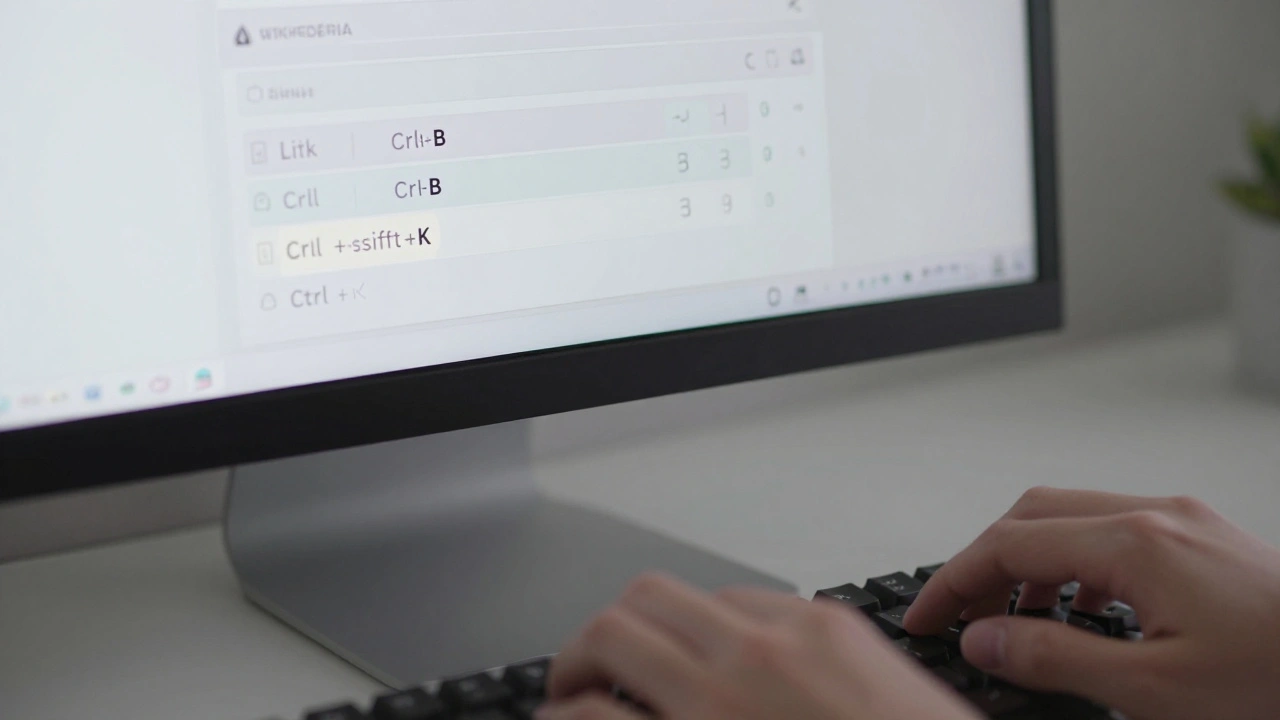
- Ctrl + B (or Cmd + B on Mac) makes text bold.
- Ctrl + I italicizes text.
- Ctrl + K opens the link insertion dialog - perfect for adding internal links without typing [[ ]] manually.
- Ctrl + Shift + K inserts a citation template, ready for you to fill in the reference details.
- Tab jumps between form fields in the edit toolbar, saving you from clicking every time.
- Ctrl + S saves your edit without leaving the editor window.
These aren’t just nice-to-haves. They’re muscle-memory tools. If you edit 10 articles a day, using Ctrl + K instead of typing [[ ]] 10 times saves you nearly 30 minutes a week. That’s five extra hours a month you can spend fixing broken links or expanding underdeveloped sections.
Enable the Advanced Editing Tools
Go to your Wikipedia preferences, click on the “Editing” tab, and turn on “Enable the visual editor” if you haven’t already. But don’t stop there. Scroll down and check “Enable the source editor toolbar”. This gives you quick access to commonly used templates like {{cite web}}, {{reflist}}, and {{stub}} without digging through menus.
Also turn on “Highlight matching brackets”. This one small setting prevents half the syntax errors new editors make. When you type {{, it automatically highlights the closing }}. You’ll catch missing brackets before you save - no more “Edit conflict” errors because of a typo.
Custom Scripts: Your Personal Wikipedia Assistant
Shortcuts help, but custom scripts turn you into a power editor. These are small JavaScript programs that run in your browser and automate repetitive tasks. They’re not magic - they’re just code that does what you’d normally do by hand.
To install scripts, go to Wikipedia:Scripts and pick one that matches your workflow. Here are three that most editors find indispensable:
- Twinkle: This script lets you quickly flag vandalism, add maintenance tags like {{copyvio}}, and warn users with pre-written messages. Instead of typing out a warning template, you click a button and select from a list. It’s like having a helper who knows all the rules.
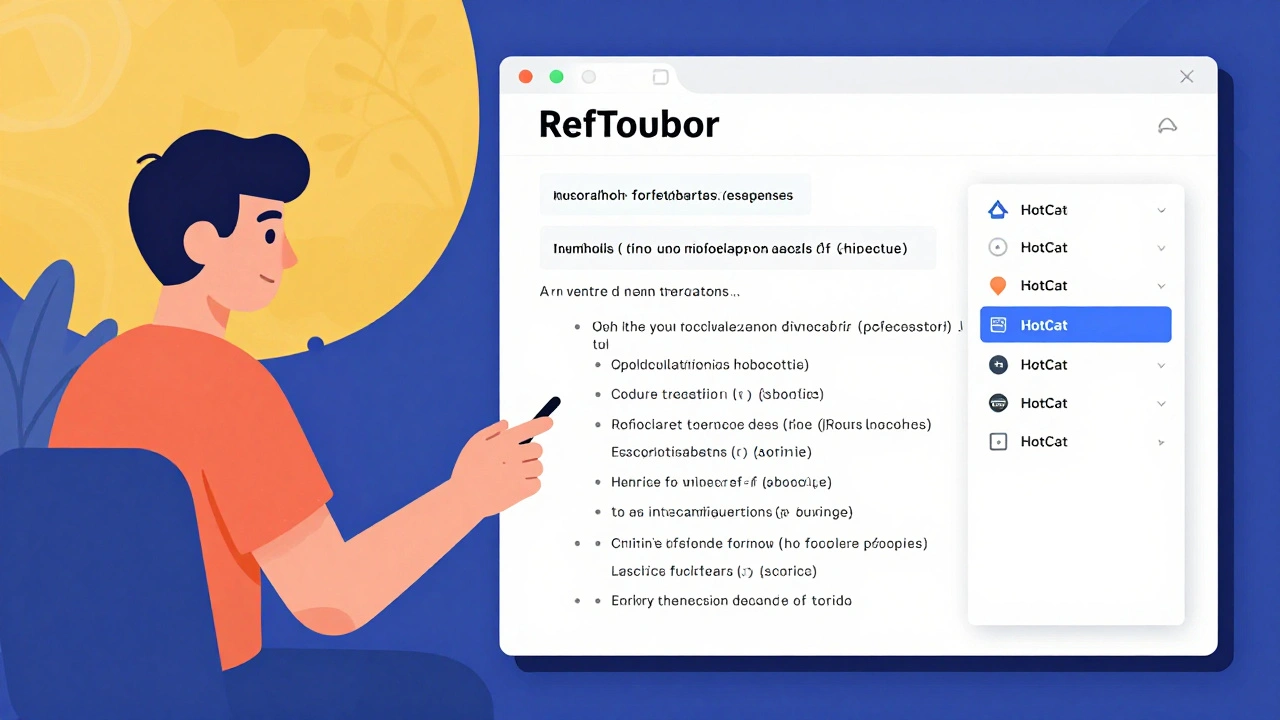
- HotCat: Manually adding categories is slow. HotCat turns the category box into a searchable dropdown. Type “biology” and it shows all matching categories. Click one, and it’s added instantly. No more hunting through 300 category pages to find the right one.
- RefToolbar: This one automates citation formatting. Instead of manually filling in author, title, URL, and date for every citation, you paste a URL and RefToolbar pulls the metadata from the page. It even checks if the source is reliable using the Wikipedia:Reliable sources guidelines.
Installing these is easy. Go to your Special:MyPage/common.js page, paste the script code, and save. Refresh the page, and the tools appear. No restart needed.
Auto-Correct and Template Macros
Ever notice how certain phrases keep showing up wrong? “African american” without a hyphen? “2020s” instead of “2020’s”? You can fix those automatically.
Use AutoWikiBrowser (AWB) for batch corrections. AWB scans articles you select and applies rules you define. Set it to replace “african american” with “African American” across 50 articles. Let it fix spacing around em dashes. It doesn’t edit live - it shows you each change first. You approve or skip. It’s like a spellchecker that understands Wikipedia style.
For smaller fixes, create your own template macros. For example, if you often add the same {{infobox}} to biographies, save the full template code as a text snippet. Use a tool like TextExpander or browser extensions like Clipboard History to store it. Type “bioinf” and it pastes the whole thing. No copy-paste hunting. No typos.
Speed Up Navigation Between Articles
Editing isn’t just about typing. A big chunk of time is spent jumping between articles - checking sources, verifying names, comparing edits. Use these tricks:
- Hold Ctrl while clicking a link to open it in a new tab. No more losing your place.
- Use the “What links here” tool (in the left sidebar) to find all pages that link to a topic. Great for spotting orphaned articles or broken redirects.
- Install the WikiMiniAtlas script. It adds a tiny map to every article with geographic data. Click it and see where the place is - no need to Google coordinates.
Why This Matters: Consistency and Scale
Wikipedia has over 6 million articles in English alone. That’s not one person’s job. It’s millions of small edits, made by people like you, adding up. When you edit faster, you do more. When you edit more consistently, the whole encyclopedia improves.
Think about it: if you fix 10 typos a day, that’s 3,650 a year. If you use a script to auto-correct one common error, you might fix 500 of those in 10 minutes. That’s not just saving time - it’s raising quality.
And it’s not about being a “power editor.” It’s about removing friction. The less you have to think about formatting, the more you can focus on adding real knowledge. Better citations. Clearer language. More accurate dates.
What Not to Do
Some editors go overboard. Don’t use scripts to auto-fill entire articles. Don’t mass-edit without checking context. Don’t turn off human review. Wikipedia’s strength is its community. Tools help, but they don’t replace judgment.
Test scripts on one article first. Read the script’s documentation. Check the talk page to see if others are using it. If a script changes formatting in a way that breaks layout, disable it. Simplicity beats automation when it breaks trust.
Start Small. Build Momentum.
You don’t need to install 10 scripts tomorrow. Start with one. Pick the shortcut you use most - maybe Ctrl + K for links. Then add one script - maybe HotCat for categories. After a week, add another. In a month, you’ll be editing faster than 90% of users.
And here’s the secret: once you get used to these tools, you’ll start noticing other inefficiencies. You’ll want to write your own script. Or suggest a feature to the Wikipedia developers. That’s how change happens - one small improvement at a time.
Do I need to know JavaScript to use custom scripts?
No. Most Wikipedia scripts are pre-written and installed with one click. You don’t need to understand code to use them. Just follow the installation steps on the script’s page. You’re using someone else’s code - not writing it.
Are custom scripts safe to use?
Yes, if you stick to scripts listed on official Wikipedia pages like Wikipedia:Scripts or the MediaWiki.org repository. Avoid scripts from random blogs or forums. The official ones are reviewed by experienced editors and are less likely to cause harm. Always read the description before installing.
Can I use these tools on mobile?
Most advanced tools like Twinkle and HotCat only work on desktop browsers. The mobile app doesn’t support custom scripts. But you can still use basic keyboard shortcuts on mobile if you use a browser like Chrome or Firefox instead of the app. For serious editing, switch to desktop.
Will using scripts get me banned?
No, as long as you follow Wikipedia’s automation policy. Scripts that make edits without human review, or that flood edits in a short time, are banned. But tools that assist you - like autocorrecting typos or adding categories - are encouraged. Always preview changes and avoid mass edits without checking context.
What’s the easiest script to start with?
HotCat. It’s simple, visual, and instantly useful. It removes the friction of adding categories, which is one of the most common editing tasks. Once you install it, you’ll wonder how you ever edited without it.