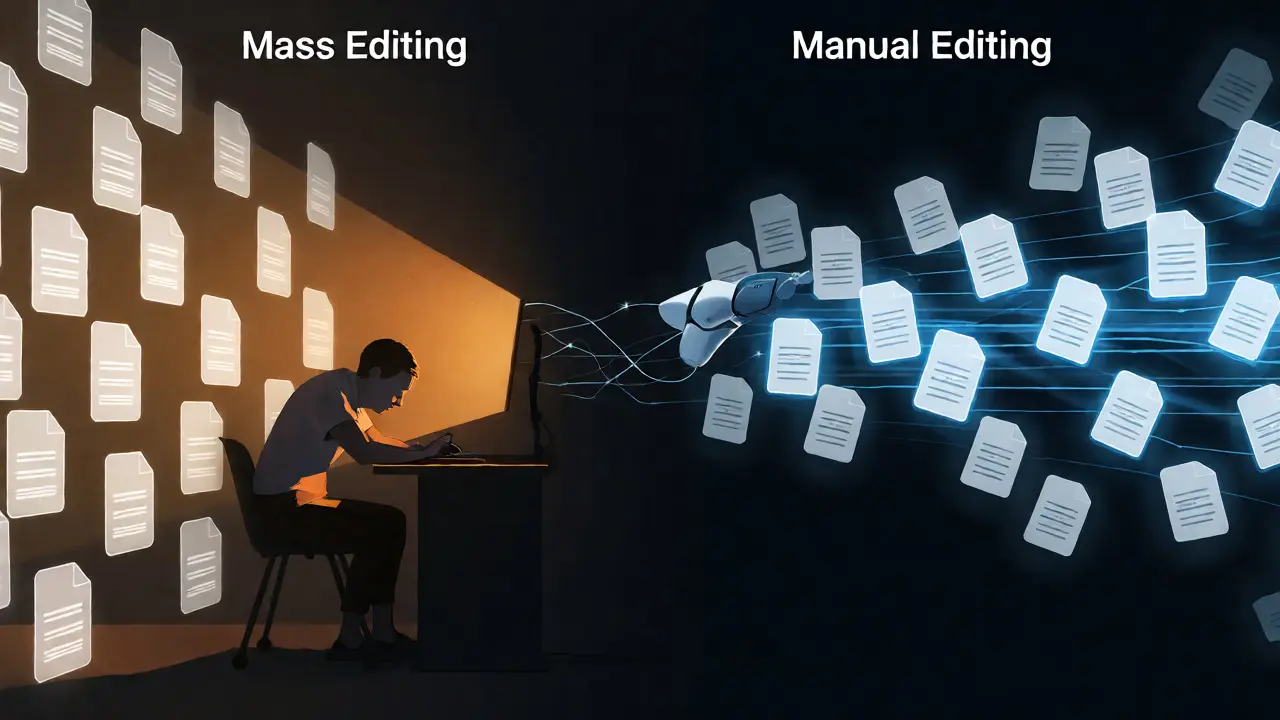
Ever stared at a list of 500 pages that all need the same tiny fix? Maybe it’s a broken link, a missing category tag, or a template that changed names last Tuesday. Doing this by hand is soul-crushing. You click, you edit, you save, repeat until your eyes blur. This is exactly where AutoWikiBrowser (AWB) comes in. It’s not magic, but it feels like it when you realize you can fix those 500 pages in ten minutes instead of five hours.
But here’s the catch: AutoWikiBrowser isn’t just a simple "click-to-edit" tool. It’s a semi-automated bot framework. If you use it wrong, you don’t just make one mistake-you make 500 mistakes instantly. And Wikipedia admins notice. This guide walks you through setting up AWB, configuring it safely, and actually using it without getting blocked.
What Is AutoWikiBrowser and Who Should Use It?
AutoWikiBrowser is a Windows-only C# application designed to assist with repetitive editing tasks on MediaWiki-based projects, most notably Wikipedia. Unlike standard web editors, AWB connects directly to the MediaWiki API. This allows it to fetch page data, apply changes, and push updates back to the server much faster than a human clicking through a browser interface.
You shouldn’t use AWB if you’re writing new content from scratch. It’s terrible for creative writing. It shines when you have a specific, mechanical task. Think renaming categories, fixing syntax errors, or updating infoboxes across hundreds of articles. If you’re doing something once, do it manually. If you’re doing it more than twenty times, fire up AWB.
| Task Type | Time (Manual) | Time (AWB) | Risk Level |
|---|---|---|---|
| Fixing 1 typo | 2 mins | 5 mins (setup) | Low |
| Renaming category in 50 pages | 45 mins | 3 mins | Medium |
| Adding citation templates to 200 stubs | 3 hours | 10 mins | High (if regex fails) |
Getting Started: Installation and Login
First things first: check your operating system. AutoWikiBrowser runs natively on Windows. If you’re on macOS or Linux, you’ll need to run it via Wine or a virtual machine, which adds a layer of complexity. For most users, a Windows environment is the path of least resistance.
Download the latest stable release from the official SourceForge repository. Don’t grab beta versions unless you know what you’re doing; betas often break mid-task. Once installed, launch the program. You’ll be greeted by a login screen. Enter your Wikipedia username and password. Note that AWB uses the same credentials as your web account. If you have two-factor authentication enabled on Wikipedia, you might need to generate an app password specifically for AWB, as it doesn’t always handle OAuth prompts smoothly out of the box.
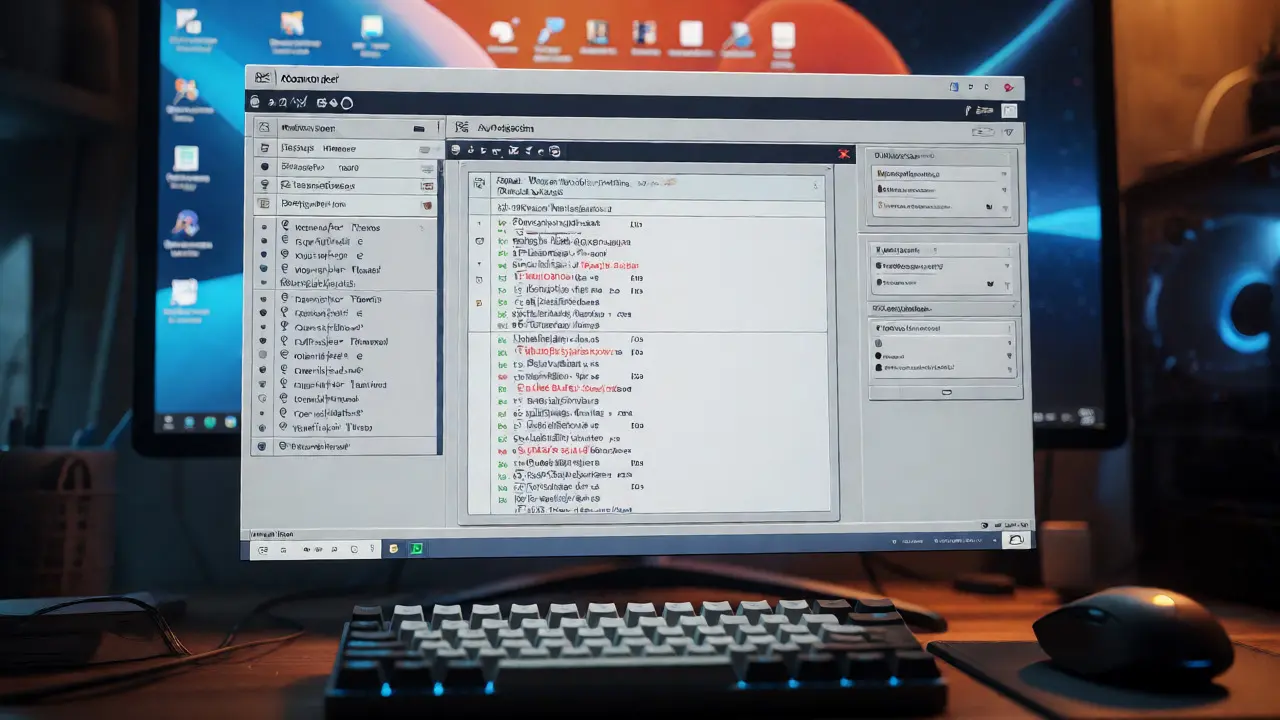
After logging in, you’ll see the main interface. It looks dated-like software from the early 2000s-but don’t let that fool you. The layout is functional. On the left, you have your task queue. In the center, you see the diff view (what changed). On the right, you have your options and settings. Familiarize yourself with these zones before touching any buttons.
Configuring Your First Task
The heart of AWB is the MakeList feature. This is how you tell AWB which pages to touch. You can pull pages from a category, a user’s contributions, or a manual list you paste in. Let’s say you want to fix a common error in articles tagged with {{Uncategorized}}.
- Go to the MakeList tab.
- Select Category as the source type.
- Type
Uncategorizedinto the field. - Set the limit to 10 pages for your first run. Never start with 100.
- Click Generate List.
Once the list populates, switch to the General tab. Here, you define what happens to each page. For our example, we want to add a maintenance template. Go to the Find & Replace section. This is powerful but dangerous. A simple find-and-replace can accidentally change text inside quotes or code blocks if you aren’t careful.
Use regular expressions (regex) if you need precision. For beginners, stick to simple string replacements. For instance, if every uncategorized article needs to be added to Category:Needs Review, you might append that text to the bottom of the page. In the Regex tab, you could set the pattern to match the end of the file and replace it with your new category tag plus the original ending.
Safety Nets: Preview Mode and Dry Runs
Here is the golden rule of AWB: Always preview before saving. AWB has a built-in preview mode that shows you exactly what the edit will look like before it hits the server. It highlights additions in green and deletions in red. If you skip this step, you’re gambling with your reputation.
When you click Show Diff, scrutinize the output. Does it look right? Did it miss a case? Did it double-add a category? If something looks off, stop. Do not click Save. Go back to your Find & Replace rules and tweak them. It’s better to spend ten extra minutes tweaking regex than to undo 500 bad edits later.
Another safety feature is the Stop Button. If you notice errors halfway through a batch, hit Stop. AWB processes pages sequentially. Stopping it won’t corrupt the database; it just pauses the current operation. You can then review the completed edits and decide whether to continue or restart the whole batch.
Advanced Features: Regex and Custom Scripts
Once you’re comfortable with basic find-and-replace, you’ll want to explore Regular Expressions. Regex lets you match patterns rather than exact strings. For example, if you want to update all instances of [[Image: to [[File:, regex helps you avoid changing text that just happens to contain the word "image" in a sentence.
A common AWB script uses the following logic:
- Pattern:
\[\[Image:(.*?)\]\] - Replacement:
[[File:$1]]
For complex tasks, you can write custom C# scripts within AWB. This turns it into a full-fledged bot platform. You can access page metadata, check for redirects, or even query other APIs. But don’t jump into coding immediately. Master the GUI options first. Most routine maintenance tasks can be handled without writing a single line of code.
Troubleshooting Common Issues
Even with careful setup, things go wrong. Here are the most frequent headaches and how to solve them.
Connection Timeouts: If AWB says "Server Busy," wait a few seconds and try again. Wikipedia throttles automated requests. If you spam the server, it blocks you temporarily. Lower your edit speed in the preferences if this happens often.
Login Failures: If AWB keeps asking for your password, clear your cookies and cache within the application settings. Sometimes, outdated session tokens cause conflicts. Also, ensure your username is spelled correctly-it’s case-sensitive.
Encoding Errors: Occasionally, special characters (like accented letters or emojis) get garbled. Ensure your encoding settings are set to UTF-8. This is critical for non-English Wikipedias or articles with international names.
Best Practices for Responsible Editing
Using AWB makes you a semi-bot. The community treats semi-bots differently than human editors. You need to be transparent. Always include a summary in your edit comments that explains what you did and why. For example: "Bot-assisted: Updating deprecated image syntax."
Check the local policy of the Wikipedia you’re editing. Some language editions require approval before running bots. Others allow anyone to use AWB for minor fixes. Read the Bot Policy page for your specific wiki. Ignoring this can lead to a quick block.
Finally, keep your edits small and reversible. Avoid making massive structural changes with AWB. Stick to syntactic cleanup. If you’re unsure about a change, ask on the village pump or talk page before running the batch. Community consensus beats automation efficiency every time.
Can I use AutoWikiBrowser on Mac or Linux?
Not natively. AutoWikiBrowser is a .NET application built for Windows. Mac and Linux users typically run it using Wine, a compatibility layer, or within a Windows virtual machine. While possible, this setup can be buggy and slower than native Windows performance.
Do I need bot approval to use AutoWikiBrowser?
It depends on the scale of your edits. Minor, uncontroversial fixes (like spelling corrections) usually don't require formal bot approval. However, large-scale changes affecting hundreds or thousands of pages often require community discussion and explicit permission. Always check the specific Bot Policy of the Wikipedia edition you are editing.
How do I undo a batch of bad edits made by AWB?
You can use the "Undo" function in AWB itself if you still have the list loaded. Alternatively, you can create a new MakeList based on your own recent contributions and use a reverse Find & Replace rule to revert the changes. For very large batches, you may need to request assistance from an administrator who can mass-undo edits.
Is AutoWikiBrowser free to use?
Yes, AutoWikiBrowser is open-source software released under the MIT License. You can download, modify, and distribute it freely. There are no subscription fees or hidden costs associated with its core functionality.
What is the difference between AutoWikiBrowser and Huggle?
Huggle is primarily a anti-vandalism tool focused on reviewing recent changes in real-time. AutoWikiBrowser is a batch-processing tool designed for making systematic changes across many existing pages. Huggle reacts to new edits; AWB proactively modifies old ones.