Ever spent hours editing Wikipedia only to miss a critical comment on your talk page? You’re not alone. Thousands of editors get lost in the noise because Wikipedia’s Echo notifications system is powerful-but hidden. Most users don’t know how to tune it, and that’s where productivity crashes. The good news? You can turn Echo from a distraction into your most reliable editing assistant.
What are Echo notifications on Wikipedia?
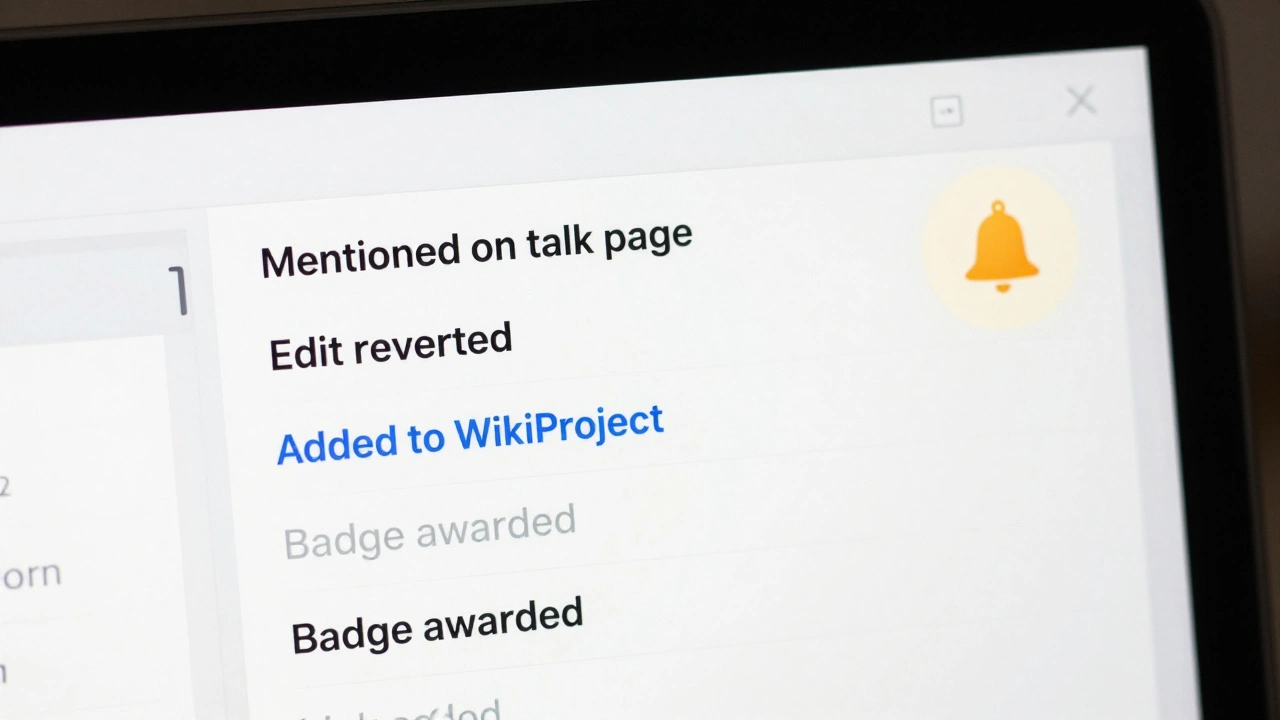
Echo is Wikipedia’s built-in notification system. It’s not just about edits. It tracks mentions, replies, thanks, reverts, link updates, and even when someone tags your contribution for review. Every action that affects your work shows up here, whether you’re a new editor or someone who’s fixed 10,000 articles.
Unlike email alerts, Echo lives right inside your Wikipedia interface. You’ll see a small bell icon in the top-right corner. Click it, and you get a clean list of everything that’s happened since your last visit. It’s faster than checking talk pages manually. It’s smarter than relying on memory.
But here’s the catch: Echo shows you everything by default. That includes low-priority alerts like when someone thanks you for fixing a typo on a page you edited three years ago. If you don’t manage it, you’ll drown in noise.
How to customize your Echo notifications
Customizing Echo takes less than five minutes. Here’s how to do it right:
- Log in to your Wikipedia account.
- Click the bell icon in the top-right corner.
- Select Preferences from the dropdown menu.
- Go to the Notifications tab.
- Under Echo, you’ll see a list of notification types.
Now, turn off what you don’t need. Most editors keep these turned on:
- Someone mentions you on your talk page - essential. You need to know when someone asks you a question.
- You’re mentioned on another user’s talk page - useful if you’re involved in a discussion.
- Someone reverts your edit - critical. If someone undoes your work, you need to know why.
- Someone thanks you - optional. Many turn this off to reduce clutter.
- Someone adds you to a project - keep this on if you’re active in WikiProjects.
Turn these off if you’re serious about focus:
- You’ve been awarded a badge - decorative, not functional.
- Someone added a link to your user page - rarely relevant.
- Someone edited a page you’re watching - use the Watchlist for this instead.
Pro tip: Use the Filter by type dropdown to view only the alerts that matter. You can also mark notifications as read in bulk. No need to click each one.
Use Echo to track your impact
Notifications aren’t just for alerts-they’re a record of your contribution. If you’re aiming for administrator status or applying for a WikiProject role, your notification history shows your engagement.
Check your notification log monthly. Look for patterns:
- Are you getting a lot of reverts? That might mean you’re editing controversial topics or missing policy guidelines.
- Are you being thanked often? You’re likely improving content quality.
- Are you being mentioned in discussions? You’re building trust in the community.
Wikipedia doesn’t track your edits as a scorecard, but Echo does. Use it to self-assess. If you notice a spike in reverts after editing a certain type of article, dig into the talk pages. Find out what went wrong. That’s how you level up.
Link Echo with your Watchlist for maximum efficiency
Don’t use Echo and Watchlist as separate tools. Use them together.
Your Watchlist tracks changes to pages you care about. Echo tells you when someone interacts with you. Combine them:
- Watch pages you frequently edit. That way, if someone makes a bad edit, you’ll see it in your Watchlist.
- When you get a notification that someone mentioned you on a watched page, you know it’s urgent.
- If you’re editing a high-traffic article like “Climate Change” or “COVID-19,” set up a Watchlist and keep Echo filtered to only mention and revert alerts.
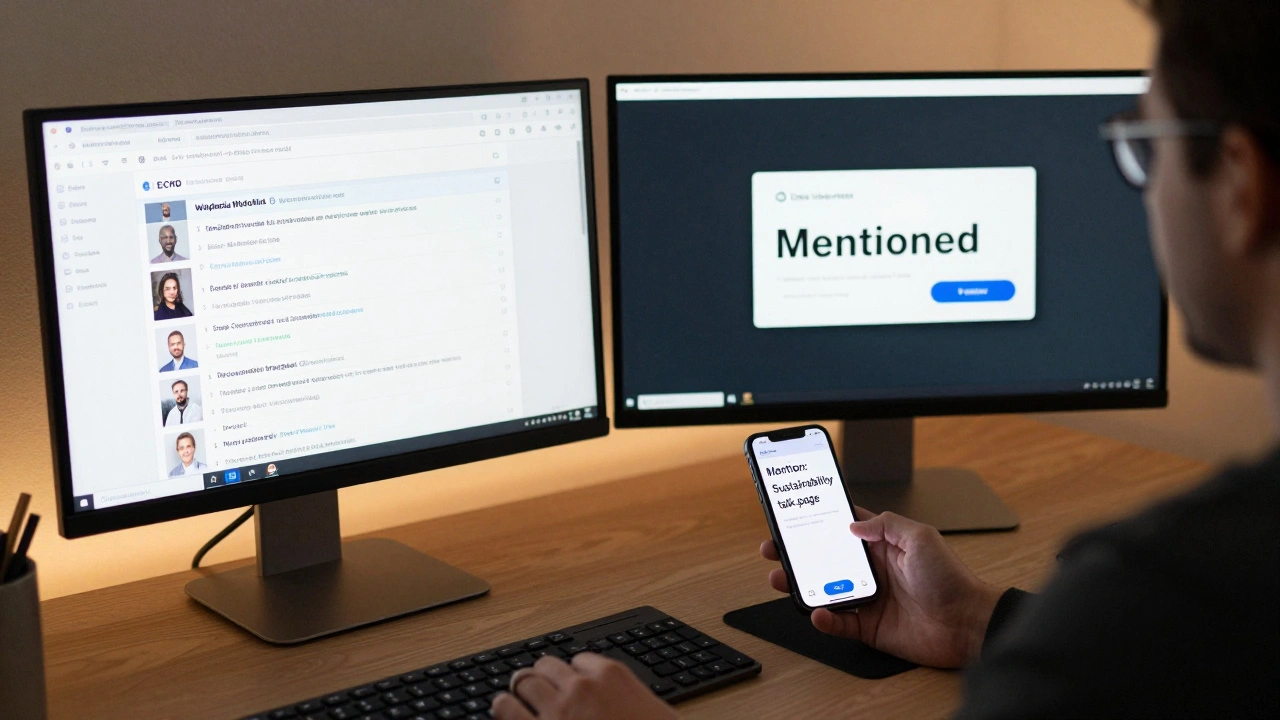
Example: You edit the “Sustainability” page daily. You have it on your Watchlist. You get a notification: “User X mentioned you on Talk:Sustainability.” You click it. They’re asking why you removed a source. You check the Watchlist-someone else added the same source back. Now you know it’s a recurring issue. You can respond with context, or update the talk page with a policy reference. You’ve turned two tools into a workflow.
Advanced hack: Use mobile notifications
Wikipedia’s mobile app (iOS and Android) supports Echo notifications. If you’re on the go, you can get push alerts for mentions and reverts.
Set it up:
- Open the Wikipedia app.
- Tap your profile icon.
- Go to Settings → Notifications.
- Toggle on Push notifications.
- Under Notification types, select only Mentions and Reverts.
This way, if someone challenges your edit while you’re commuting, you’ll know within seconds. You can jump in and fix it before the discussion grows. No more “I didn’t see it until tomorrow.”

Common mistakes and how to avoid them
Even experienced editors mess this up. Here are the top three errors:
- Turning off all notifications - You think you’re avoiding noise. You’re actually missing critical feedback. Reverts without context lead to edit wars.
- Not checking notifications for days - Notifications stack up. If you wait a week, you’ll have 50 unread alerts. That’s overwhelming. Check daily, even for two minutes.
- Replying to the wrong person - Echo shows you who mentioned you, but not always the context. Always click through to the talk page. Don’t reply from the notification popup. You’ll miss the full conversation.
Best practice: Set a daily 5-minute alarm. Open Wikipedia. Check Echo. Mark as read. Respond to one or two urgent items. That’s it. You’ll stay in sync without burnout.
Why this matters beyond efficiency
Wikipedia isn’t just a website. It’s a community. Echo is your bridge to it. When you respond to feedback, you show respect. When you fix errors quickly, you improve content. When you engage with others’ questions, you become someone others trust.
Editors who use Echo well are the ones who get invited to join WikiProjects. They’re the ones who become administrators. They’re the ones who help shape policy-not because they’re loud, but because they’re reliable.
Notifications aren’t about being notified. They’re about being present.
How do I turn off Echo notifications completely?
You can’t turn off Echo entirely-it’s part of Wikipedia’s core system. But you can disable all notification types in your Preferences under the Notifications tab. This will stop all alerts, including mentions and reverts. Not recommended. You’ll miss important feedback. Instead, filter out low-priority alerts and keep only the essentials.
Why am I getting notifications for edits I didn’t make?
You might have been mentioned on a talk page by another editor, even if you didn’t edit the article. Echo notifies you when someone uses your username in a comment, even if it’s unrelated to your edits. Check the notification details to see the context. If it’s spam or irrelevant, mark it as read and ignore it.
Do Echo notifications work for anonymous editors?
No. Echo only works for logged-in users. Anonymous editors won’t receive any notifications. If you want to stay engaged with feedback, create a free account. It takes less than a minute, and you’ll never miss a reply again.
Can I get Echo notifications via email?
Wikipedia doesn’t send Echo notifications by email. You can enable email notifications for specific events like “someone left a message on your talk page,” but that’s a separate setting under Preferences → Email. Echo is designed to be an in-site tool. For real-time editing, rely on the bell icon, not your inbox.
How often should I check my Echo notifications?
Daily, even for just 2-3 minutes. If you edit frequently, check after each session. If you edit weekly, set a reminder. Unread notifications pile up fast. A quick daily check prevents overwhelm and keeps you in the conversation. Consistency matters more than frequency.