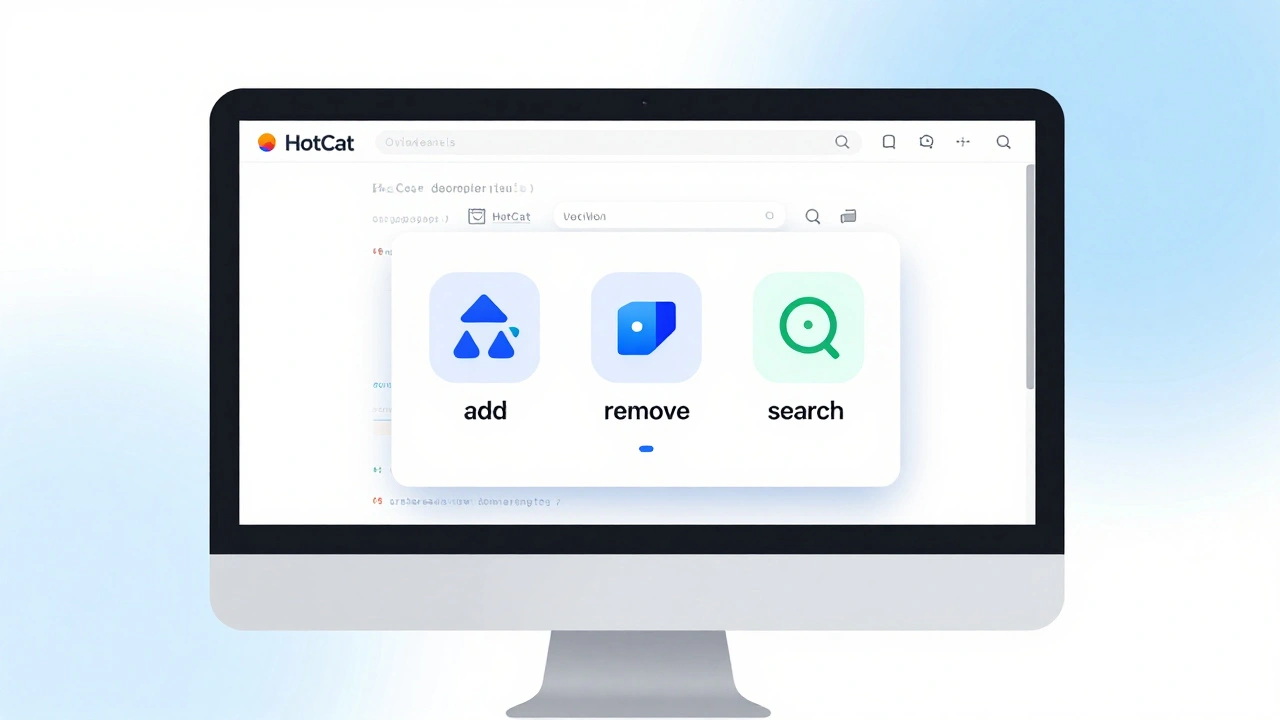
Adding a single category to a Wikipedia article used to mean digging into the raw code of the page. You had to find the bottom of the edit box, type out brackets, and hope you didn't break the formatting. For most editors, this friction was enough to skip categorization entirely or leave it for someone else. That changed with the introduction of HotCat, a browser-based gadget that allows users to add, remove, and modify categories directly from the article view without opening the source editor. Today, it is one of the most widely used tools in the Wikimedia ecosystem.
If you spend any time cleaning up uncategorized articles or organizing complex topics, manual editing is just too slow. Tools like HotCat, WikiMiner, and Cat-a-lot turn what used to be a tedious coding task into a quick click-and-select process. This guide breaks down how these tools work, which ones fit your workflow, and how to use them effectively without making common mistakes.
What Is HotCat and Why Do Editors Love It?
HotCat stands for "Hot Categories." It was created by a user named Brion Vibber and later maintained by others in the community. The core idea is simple: let you manage categories visually. Instead of typing `[[Category:Example]]`, you see a list of current categories at the top of the page. You can delete them with an 'x', add new ones via autocomplete, and move articles between parent and child categories instantly.
The tool runs as a JavaScript gadget on your browser. Once enabled in your preferences, it injects itself into every page you view. If you are logged in, you get full access to its features. If you are not logged in, some functions may be restricted depending on server settings. HotCat works across all language versions of Wikipedia because it relies on standard MediaWiki infrastructure.
One major advantage is speed. When reviewing an article for accuracy, you might notice it belongs in two additional subcategories. With HotCat, you click, select, and save-all within seconds. There is no need to switch contexts or worry about syntax errors in the markup. This reduces cognitive load and lets you focus on content quality rather than technical formatting.
Setting Up HotCat on Your Account
To start using HotCat, you need to enable it through your personal preferences. Here is how you do it:
- Log in to your Wikipedia account.
- Click on "Preferences" in the top right corner of any page.
- Select the "Gadgets" tab from the left-hand menu.
- Scroll down to the section labeled "Editing" or search for "HotCat" in the search bar provided on the gadgets page.
- Check the box next to "HotCat" to enable the feature.
- Save your changes at the bottom of the page.
Once saved, refresh any article page. You should now see a small interface near the top of the content area showing existing categories. If you don't see it immediately, clear your browser cache or try hard-refreshing the page (Ctrl+F5 or Cmd+Shift+R). Some browsers also block third-party scripts by default, so ensure your privacy settings allow local storage and cookies for wikimedia.org domains.
After setup, test it out on a draft or sandbox page first. Add a fake category like "Test Category" and then remove it. This helps you get comfortable with the buttons before touching live articles.
Key Features of HotCat Explained
HotCat offers several powerful features that go beyond basic adding and removing. Understanding these will help you work faster and more accurately.
- Autocomplete Search: As you type a category name, HotCat suggests matches based on existing categories in the database. This prevents typos and ensures consistency.
- Parent/Child Navigation: You can quickly move an article from a broad category to a more specific subcategory. For example, moving from "Mammals" to "Carnivora" becomes a single click.
- Batch Operations: While primarily designed for single-article edits, advanced users combine HotCat with other tools to handle multiple pages efficiently.
- Visual Feedback: Changes appear highlighted until you save, allowing you to double-check before committing.
These features make HotCat indispensable for routine maintenance tasks. However, it has limitations. It does not support mass-categorization across hundreds of pages simultaneously. For that, you need different tools.
Alternative Tools: WikiMiner and Cat-a-lot
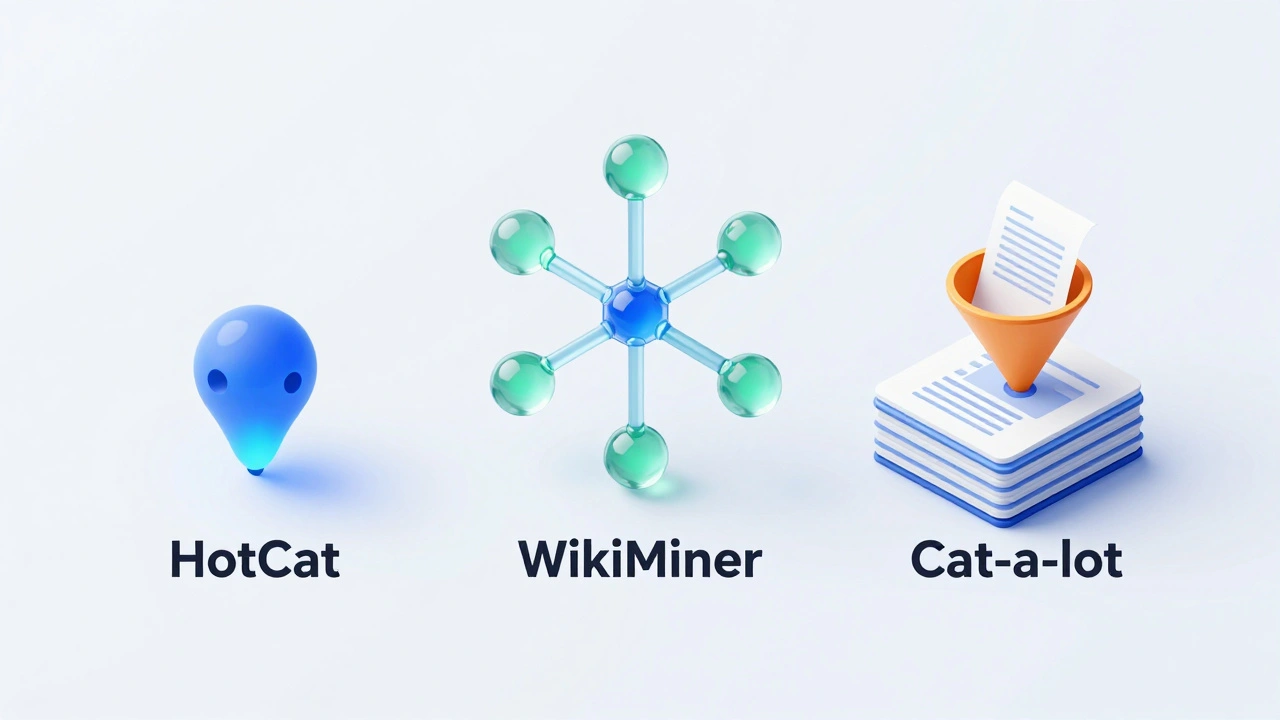
While HotCat handles individual articles well, other tools fill gaps in bulk operations and deeper analysis. Knowing when to switch tools saves hours of unnecessary clicking.
| Tool Name | Primary Use Case | Interface Type | Best For |
|---|---|---|---|
| HotCat | Single article editing | In-page overlay | Quick fixes, daily cleanup |
| WikiMiner | Category tree exploration | Separate window/tab | Research, finding correct hierarchy |
| Cat-a-lot | Bulk categorization | Dedicated utility page | Mass moves, large-scale reorganization |
WikiMiner is particularly useful when you are unsure where an article fits. It provides a visual map of category trees, letting you drill down from general to specific levels. Imagine trying to place an article about a rare bird species. WikiMiner helps you navigate from "Birds" → "Passerines" → "Specific Family" without guessing.
Cat-a-lot, part of the Twinkle suite, excels at moving many articles at once. If you discover a misused category containing 500 pages, Cat-a-lot lets you review each one individually while applying consistent changes. It includes safeguards against accidental overwrites and requires confirmation for each action.
Common Mistakes to Avoid When Using Category Tools
Even experienced editors make errors when rushing through categorization tasks. Being aware of these pitfalls protects both your reputation and the integrity of the encyclopedia.
- Over-Categorizing: Adding too many categories dilutes their meaning. Stick to relevant, established categories rather than creating overly niche ones unless there is consensus.
- Ignoring Redirects: Sometimes a category redirects to another. Always check if your target category actually exists or points elsewhere to avoid broken links.
- Skipping Verification: Before saving batch changes, verify that each article truly belongs in the new category. Automated tools don't understand context-they only follow instructions.
- Creating Orphaned Categories: New categories must themselves be categorized properly. Otherwise, they become invisible islands disconnected from the main structure.
A good rule of thumb is to ask yourself: "Would another editor expect to find this article here?" If the answer is uncertain, look up similar articles and see how they are classified. Consistency matters more than perfection.

Advanced Tips for Power Users
Once you master the basics, you can enhance your efficiency with advanced techniques. These tips apply mainly to frequent contributors who handle high volumes of edits.
First, customize your HotCat settings. In your preferences under Gadgets, you can adjust options such as default sorting order, whether to show hidden categories, and keyboard shortcuts. Enabling keyboard navigation allows you to cycle through suggestions without touching the mouse.
Second, combine HotCat with watchlist monitoring. Set up filters to alert you when articles lack categories. Many active editors create custom queries using Special:WantedCategories or API calls to identify gaps systematically.
Third, collaborate via talk pages. If you plan to restructure a major category subtree, discuss it first. Community input prevents conflicts and ensures alignment with project goals. Documentation updates often accompany structural changes, so link to relevant guidelines during discussions.
When Should You Not Use HotCat?
Despite its convenience, HotCat isn't suitable for every situation. Recognizing its limits keeps your contributions professional and compliant with policies.
Avoid using HotCat for highly controversial or sensitive topics where precise wording matters. Manual editing gives you finer control over exact phrasing and placement. Similarly, if you are dealing with protected pages requiring administrator privileges, HotCat won't bypass those restrictions-you'll need to request permission formally.
Also refrain from relying solely on HotCat during initial article creation. Fresh drafts benefit from careful planning of their entire structure, including infoboxes, references, and internal links. Jumping straight into categorization skips foundational steps that impact long-term usability.
Is HotCat available on mobile devices?
HotCat is primarily designed for desktop browsers due to its reliance on complex JavaScript overlays. Mobile interfaces typically offer simplified editing experiences, so HotCat functionality may be limited or unavailable on smartphones and tablets. Consider using the official Wikipedia app's built-in categorization features instead.
Can I use HotCat on non-Wikipedia Wikimedia projects?
Yes, HotCat works on most Wikimedia Foundation sites including Wikibooks, Wikinews, and Wikivoyage. Each project maintains its own category system, but the underlying technology remains compatible. Enable it separately for each domain if needed.
What happens if I accidentally delete a category?
All edits on Wikipedia are reversible. Check the article's history tab to locate the change and revert it manually. Alternatively, use the "undo" button if available. Regular backups of your work prevent data loss in case of unintended actions.
Do I need special permissions to use HotCat?
No, any registered user can enable HotCat through their preferences. Anonymous visitors cannot activate gadgets since they lack persistent accounts. Permissions depend on the specific category being edited-some require autoconfirmed status or higher.
How does HotCat differ from manual editing?
Manual editing involves typing raw wiki markup code directly into the source editor. HotCat provides a graphical interface that abstracts away the syntax, reducing errors and speeding up repetitive tasks. Both methods achieve identical results, but HotCat enhances accessibility for casual contributors.