Quick Takeaways for Multilingual Editors
- Synchronized Updates: When the source page changes, the system automatically flags translated sections as outdated.
- Unit-Based Work: Translation happens in small, manageable blocks rather than entire pages.
- Quality Control: Built-in review cycles ensure that community members can vet translations before they go live.
- Accessibility: It lowers the barrier for bilingual users who want to contribute but don't have time to rebuild a whole page.
What exactly is the Translate Extension?
At its core, Translate Extension is a powerful tool for MediaWiki that allows editors to translate content from one language to another while maintaining a live link between the original and the translation. It replaces the old-school method of creating a separate page in a different language and manually updating it every time the original changes. Instead, it uses a system of "translation units"-essentially small chunks of text-that are mapped directly to the source.
This system is built on MediaWiki, the software that powers Wikipedia. To make this work, the extension relies on a specific markup process. You don't just write a page and click "translate"; you first have to prepare the page using a process called "marking." This tells the software, "Hey, everything between these two tags needs to be translated." Without this step, the extension doesn't know where the actual content ends and the formatting begins.
Getting the Source Page Ready
You can't just throw any random page into the translation pipeline. If you want a page to be translatable, you have to use the Translate namespace. This is where the "magic" happens. You create a page in the Translate namespace that acts as the master copy. Once you wrap your paragraphs in translation tags, the system generates a translation page for every single language version of the wiki.
A common mistake beginners make is trying to translate pages with too many complex templates. If your page is 90% fancy boxes and only 10% text, the Translate extension might struggle to identify the boundaries of the text. The best practice here is to keep your source text clean. Use simple paragraphs and clear headings. If you have a complex table, consider whether the data inside it actually needs translation or if it's just numbers and dates.
The Translation Workflow in Action
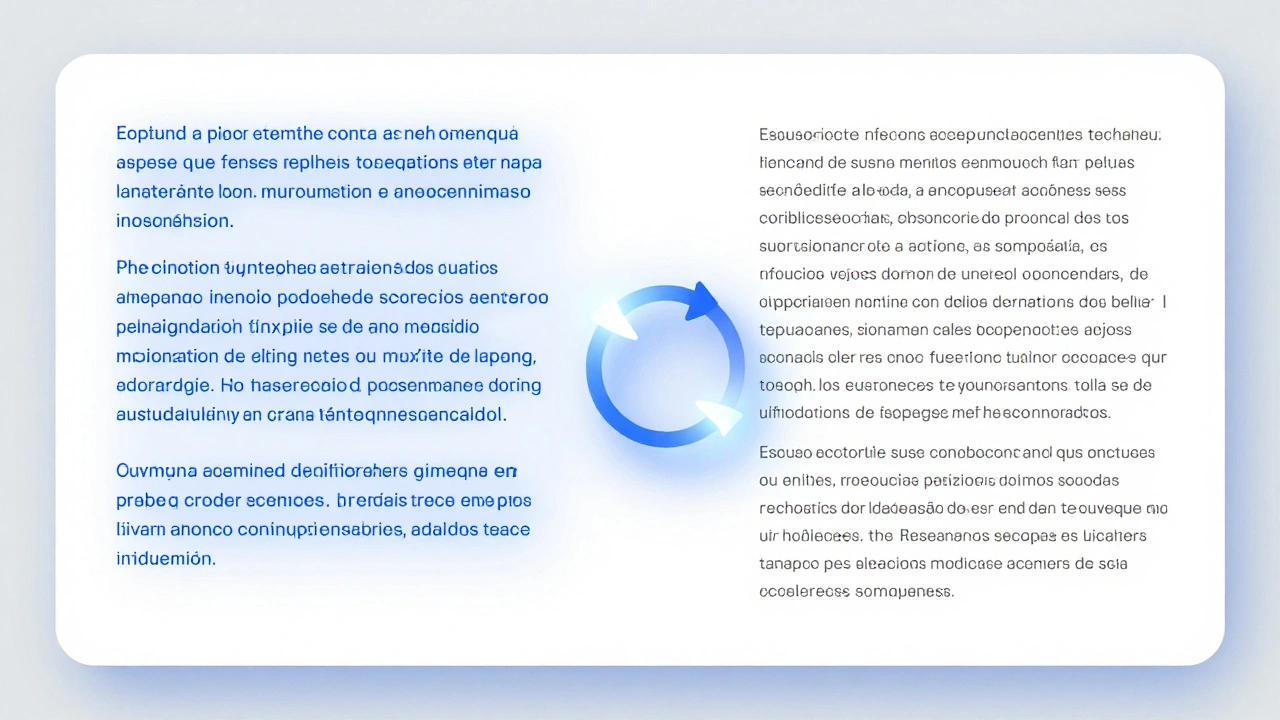
Once the source page is marked and saved, the translation interface opens up. It looks less like a wiki editor and more like a professional CAT (Computer Assisted Translation) tool. On one side, you see the original English text; on the other, a blank box for your target language. This side-by-side view is a game changer because it prevents the "lost in translation" effect where an editor forgets a crucial nuance from the original paragraph.
The process follows a specific logic: Translation Unit $\rightarrow$ Translator $\rightarrow$ Reviewer. When you submit a translation for a block of text, it doesn't always go live instantly. Depending on the wiki's settings, it might enter a review queue. Another editor, usually someone with more experience in that specific language, checks the grammar and accuracy. Once they hit "approve," the translation is pushed to the public page.
| Feature | Manual Copy-Paste | Translate Extension |
|---|---|---|
| Update Process | Manual check of original page | Automatic "outdated" flags |
| Collaboration | One person usually owns the page | Multiple users can tackle different units |
| Consistency | Varies by editor | Shared translation memory/glossaries |
| Setup Time | Instant start | Requires initial marking phase |
Dealing with Outdated Translations
One of the most frustrating things about running a multilingual site is the "drift." You update a fact on the English page-say, a politician's current office-but the French, German, and Arabic versions still show the old information. In a manual system, that error stays there until someone happens to notice it. With the Translate extension, the system tracks the version of the source text. As soon as you change a word in the English source, every translation of that specific unit is marked as "outdated."
For the translator, this appears as a notification. They don't have to re-translate the whole page; they only see the specific paragraphs that changed. This drastically reduces the workload. However, it does create a bottleneck if you have a small community of translators. If you change the source page ten times a day, your translators might feel like they're chasing a ghost. A pro tip here is to batch your source updates. Don't make tiny edits every ten minutes; wait until the section is truly finished before saving the source page.

Pitfalls to Avoid When Marking Pages
Not all markup is created equal. If you place a translation tag in the middle of a Wikitext template, you might break the entire page layout. For example, if you start a translation tag inside a template call and end it outside, the page will likely render as a mess of curly braces and raw code. Always ensure your tags wrap complete logical units of text.
Another trap is over-segmenting. If you make your translation units too small (e.g., just a few words), the translator loses the context. If you make them too large (e.g., an entire five-paragraph section), the review process becomes tedious. Aim for the "Goldilocks zone": one or two paragraphs per unit. This gives the translator enough context to understand the tone while keeping the review process snappy.
Advanced Strategies for Community Coordination
Managing a Multilingual Initiative is as much about people as it is about software. To keep the momentum going, create a "Translation Hub" page. This is a central spot where you list which pages are high priority and which languages are lagging. Since the Translate extension provides a clear percentage of completion for each language, you can use these metrics to gamify the process. "We are 80% done with the Spanish version, let's get it to 100%!" is a powerful motivator for volunteers.
Furthermore, consider implementing a glossary. While the extension handles the units, it doesn't automatically enforce terminology. If one translator calls a specific technical term "Interface" and another calls it "User Portal," the page will feel disjointed. Establish a shared terminology list in the project's documentation so that all contributors use the same vocabulary across different translation units.
Does the Translate extension support automatic machine translation?
While the core extension focuses on human translation, some wiki installations integrate with APIs like Google Translate or DeepL to provide a "suggested" translation. However, these are always treated as drafts and require a human editor to review and approve them before they are finalized to ensure accuracy and nuance.
What happens if I delete the source page in the Translate namespace?
Deleting the source page effectively breaks the link to all translated versions. The translated pages will still exist, but they will no longer be synchronized. You will lose the ability to track outdated sections, and any one-click updates will stop working. Always archive or rename source pages instead of deleting them if you want to keep the synchronization alive.
Can any user translate pages, or do I need special permissions?
This depends entirely on the specific wiki's configuration. Most Wikipedia-style sites allow any registered user to propose a translation, but only users with "Reviewer" or "Administrator" status can mark a translation as approved. This tiered system prevents vandalism and ensures a high standard of quality across different languages.
How do I handle images and media in the translation interface?
Images and media files are generally handled as part of the non-translatable formatting. If an image is inside a translation unit, it will be carried over to the target language. If you need a language-specific image (for example, a map with labels in Japanese), you should handle that in the final page layout rather than within the Translate extension's unit editor.
Is the Translate extension available for all MediaWiki sites?
Yes, it is an open-source extension that can be installed on any MediaWiki instance. However, it requires a bit of technical setup, including the installation of the extension itself and the configuration of the Translate namespace. Once installed, it is available for all pages the administrator chooses to enable.
Next Steps and Troubleshooting
If you're just starting out, begin with a small, high-impact page. Don't try to translate your entire encyclopedia in one go. Pick a "Featured Article" or a core policy page and move it into the Translate namespace. This lets you test your marking tags and see how the reviewers handle the workflow without risking a massive amount of content.
If you run into a situation where the "Translate this page" button doesn't appear, check two things: First, ensure the page is actually in the Translate namespace. Second, verify that you have wrapped the content in the correct <translate> and </translate> tags. If the tags are broken or overlapping, the system will fail to recognize the page as translatable. When in doubt, clear your cache and check the raw wikitext for any stray characters that might be interfering with the markup.