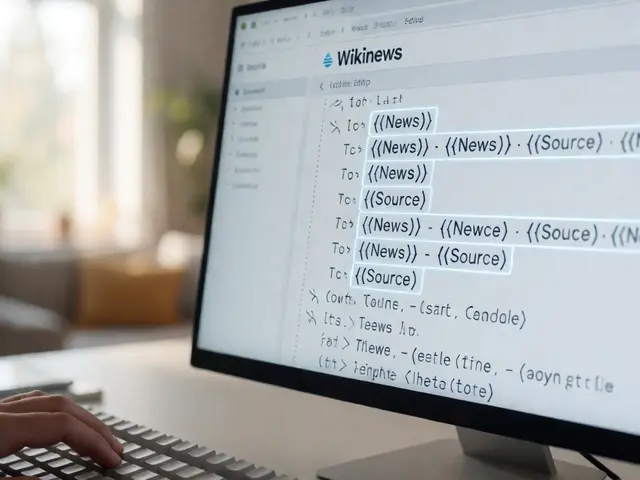
Ever stared at a cluttered Wikipedia talk page and wondered how some editors clear out old threads in seconds? They are likely using Twinkle, a powerful browser-based script that automates routine maintenance tasks on the encyclopedia. If you are new to contributing to Wikipedia, this tool might seem intimidating, but it is actually designed to save you hours of manual clicking. Think of Twinkle as your digital assistant for cleaning up messes, tagging articles for improvement, and managing discussions without breaking a sweat.
What Exactly Is Twinkle?
Twinkle is a JavaScript user script that adds extra buttons and menus to the standard Wikipedia interface. It does not replace the core editing tools; instead, it layers helpful shortcuts on top of them. The script was originally created by a community of experienced editors who wanted to streamline repetitive tasks like deleting transcluded templates or marking articles as needing citations. Today, it is one of the most widely adopted third-party tools on the platform, used by thousands of volunteers daily.
The beauty of Twinkle lies in its modularity. You do not have to use every feature at once. You can enable specific modules based on what you need. For example, if you mostly work on article quality, you might only turn on the "Tagging" module. If you handle disputes, you might focus on the "Discussion" module. This flexibility makes it accessible even for beginners who just want to learn one or two tricks first.
Setting Up Twinkle: A Step-by-Step Guide
Getting started is straightforward, but there are a few prerequisites. First, you must be logged into your Wikipedia account. Second, you need to ensure your browser supports user scripts. Most modern browsers like Chrome, Firefox, and Edge support this natively through Wikipedia's own system preferences, though some users prefer installing extensions like Greasemonkey or Tampermonkey for more control.
- Navigate to your Wikipedia preferences page.
- Scroll down to the "Gadgets" section (or look for "User scripts" depending on your interface version).
- Find "Twinkle" in the list of available gadgets.
- Check the box next to it to enable the base script.
- Save your preferences.
- Reload any Wikipedia page to see the new buttons appear in the toolbar.
Once enabled, you will notice a small star icon or additional dropdown menus in the edit toolbar. That is your cue that Twinkle is active. If you do not see it, double-check that you saved your preferences and reloaded the page properly.
Core Features: Tagging Articles Efficiently
One of the most common uses of Twinkle is tagging articles with maintenance templates. Instead of typing out {{Cite needed}} or {{Expand section}} manually, Twinkle provides a searchable menu where you can select the exact template you need. This reduces typos and ensures you use the correct syntax.
The tagging module works by analyzing the current article context. For instance, if you are in a section that lacks references, Twinkle might suggest citation-related tags. You can also apply multiple tags at once. Here is a quick comparison of manual tagging versus using Twinkle:
| Task | Manual Method | Twinkle Method |
|---|---|---|
| Add Citation Needed | Type {{Cite needed}} manually | Select from dropdown menu |
| Mark Section for Expansion | Search for correct template name | Auto-suggests based on context |
| Apply Multiple Tags | Copy-paste each tag individually | Batch apply selected tags |
| Error Risk | High (syntax errors possible) | Low (pre-validated templates) |

Managing Talk Pages and Discussions
Talk pages can get messy fast, especially on popular articles. Old discussion threads pile up, making it hard to find recent conversations. Twinkle solves this with its "Thread" module. It allows you to archive old threads with a single click, moving them to an appropriate subpage automatically.
Beyond archiving, Twinkle helps with consensus-building. It includes features to mark threads as resolved or unresolved, which helps other editors quickly gauge the status of a debate. If you are moderating a dispute, you can use Twinkle to add standard resolution banners without hunting for the right template code. This keeps the conversation focused and organized.
Advanced Modules: Cleanup and Deletion
For more experienced editors, Twinkle offers powerful cleanup tools. The "Cleanup" module lets you remove unwanted elements like stray HTML tags, broken links, or redundant categories. It scans the article and highlights issues, allowing you to fix them in bulk.
If you are dealing with content that should be deleted, Twinkle simplifies the nomination process. Instead of navigating to a separate deletion review page, you can nominate an article for speedy deletion directly from the edit screen. The script pre-fills the necessary form fields, saving you time and ensuring you meet the criteria for speedy removal. Just remember, deletion decisions require community consensus, so use these tools responsibly.
Best Practices and Common Pitfalls
While Twinkle is powerful, overusing it can backfire. Always check your changes before saving. Sometimes, automated tags might not fit the specific context of an article. For example, applying a "needs attention" tag to a well-referenced section might confuse other readers.
- Preview First: Always use the preview function to see how your tags render.
- Respect Consensus: Use discussion tools to facilitate dialogue, not to enforce your opinion.
- Stay Updated: Wikipedia templates change. Keep your Twinkle script updated to avoid deprecated template errors.
- Communicate Clearly: When tagging others' work, leave a brief note explaining why you added the tag.
Frequently Asked Questions
Is Twinkle free to use?
Yes, Twinkle is completely free and open-source. It is maintained by the Wikipedia community and costs nothing to install or use.
Do I need coding knowledge to use Twinkle?
No basic coding knowledge is required. The interface is graphical, with dropdown menus and buttons. However, understanding basic Wikipedia markup helps you understand what the tool is doing behind the scenes.
Can Twinkle break my edits?
Rarely, but it can happen if you apply the wrong template. Always preview your changes before saving. If something goes wrong, you can easily revert the edit using the standard Wikipedia history tools.
Does Twinkle work on all Wikipedia language versions?
Mostly yes, but some features may vary. The core tagging and discussion tools work across languages, but specific template names differ. Check the local documentation for your language version if you encounter issues.
How do I update Twinkle to the latest version?
Twinkle updates automatically when you reload your preferences. If you are using a standalone script manager, check for updates within that extension. Keeping the script current ensures compatibility with the latest Wikipedia interface changes.