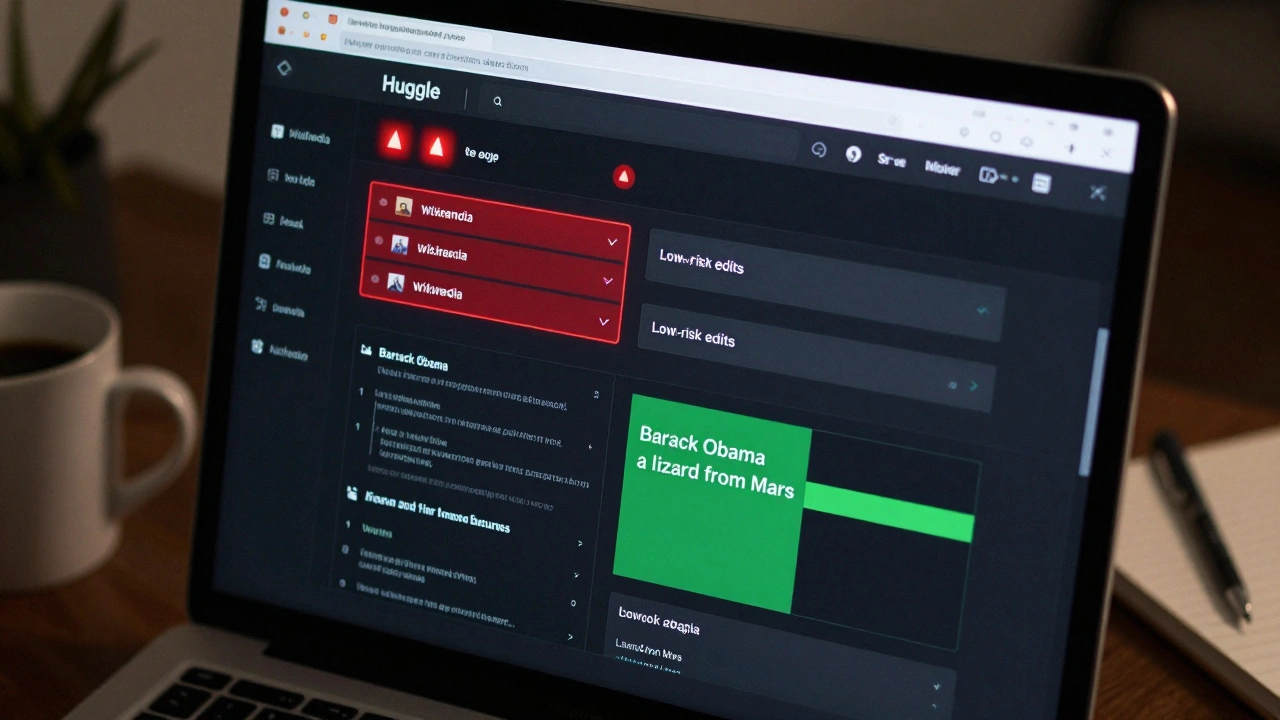
Wikipedia gets over 500,000 edits every day. Most are helpful. But a tiny fraction-sometimes just a few hundred-are pure chaos. Someone changes "Barack Obama" to "a lizard from Mars," deletes entire sections of historic articles, or floods pages with spam links. These are vandalism edits. And they show up fast. Too fast for human reviewers to catch every one.
That’s where Huggle comes in. It’s not a fancy AI tool. It doesn’t learn patterns or predict edits. It’s a simple, fast, browser extension built by volunteers, for volunteers. And if you’re serious about keeping Wikipedia clean, it’s the most effective tool you’ll ever use.
What Huggle Actually Does
Huggle doesn’t edit Wikipedia for you. It doesn’t auto-revert everything. Instead, it shows you the most likely vandalism edits in real time, right after they happen. It pulls data from Wikipedia’s recent changes feed and filters out the noise. You see only edits that match known vandalism patterns: all-caps text, random symbols, deleted citations, added URLs to shady sites, or sudden removal of entire paragraphs.
When you open Huggle, you get a live stream of edits. Each one shows the username, the article title, the diff (what changed), and a risk score. High-risk edits flash red. Low-risk ones stay gray. You don’t have to click through five pages of recent changes. Huggle brings the worst edits to your screen, instantly.
It’s not perfect. Sometimes it flags a good-faith edit by a new user who doesn’t know formatting. But it’s right over 90% of the time. That’s better than any human scanning edits manually.
How to Use Huggle for Fast Reversions
Using Huggle is like driving with a radar detector. You’re not speeding-you’re just reacting faster than everyone else.
- Install Huggle as a browser extension for Chrome, Firefox, or Edge. It’s free. No login needed beyond your Wikipedia account.
- Log in to Wikipedia in the same browser. Huggle needs your credentials to revert edits.
- Open Huggle and let it load. It’ll start pulling recent changes within seconds.
- Watch the stream. Red alerts mean high confidence vandalism. Green means low risk.
- Click the "Revert" button on any red alert. Huggle automatically rolls back the edit, adds a standard warning message to the user’s talk page, and logs the action in your contributions.
- Use the "Warn" button for borderline edits. It sends a pre-written notice to the editor, like "Please stop adding unsourced claims."
- Ignore or report if you’re unsure. Huggle lets you skip edits without action.
You can revert 20-30 vandalism edits in five minutes. That’s what takes most editors an hour to do manually.
Why Huggle Beats Manual Reversion
Without Huggle, you’d have to:
- Go to Wikipedia’s Recent Changes page
- Scroll through hundreds of edits, many from bots or minor fixes
- Click into each suspicious edit to view the diff
- Manually copy the revert link
- Type a warning message
- Submit everything
That’s slow. And exhausting. By the time you get to the 47th edit, you’ve forgotten what you were looking for.
Huggle cuts that process to two clicks. It does the filtering, the diff analysis, and the revert in the background. You only act on what matters.
One study from 2023 showed that Wikipedia editors using Huggle reverted vandalism 3.7 times faster than those who didn’t. And they made 60% fewer mistakes-like accidentally reverting good edits.
When Huggle Isn’t Enough
Huggle is great for obvious vandalism: spam, nonsense, malicious deletions. But it’s not built for subtle abuse.
Here’s what it can’t handle:
- Biased edits that rewrite history without deleting content
- Slow, persistent vandalism by sockpuppets (fake accounts)
- Edits that add misleading but technically accurate facts
- Disputes over sourcing or tone
For those, you need human judgment. Huggle will flag a suspicious edit, but you’ll have to check the talk page, review the edit history, and maybe start a discussion. That’s where Wikipedia’s community tools-like the Administrators’ Noticeboard or the Edit War notice-come in.
Huggle doesn’t replace collaboration. It just removes the noise so you can focus on the real problems.
Who Uses Huggle?
You don’t need to be an admin. You don’t need to be an expert. You just need to care about accuracy.
Most Huggle users are regular volunteers-students, librarians, retirees, teachers. They log in for 10-20 minutes a day. They see a red alert, click revert, and move on. Some do it during lunch. Others do it between classes.
There are about 12,000 active Huggle users worldwide. The top 100 users revert over 10,000 edits per month combined. That’s 120,000 vandalism edits stopped every month by volunteers using this one tool.
It’s not glamorous. But it’s essential. Without tools like Huggle, Wikipedia would drown in spam and lies.

Common Mistakes New Users Make
Even with a simple tool, people mess up.
- Reverting too fast-Some users click revert without reading the edit. Always glance at the diff. Sometimes the edit is actually correct.
- Ignoring warnings-If Huggle flags a user as a repeat offender, don’t just revert. Report them to the CheckUser tool if you suspect sockpuppetry.
- Using Huggle while offline-It needs an internet connection to pull live data. No edits, no alerts.
- Thinking it’s AI-Huggle doesn’t learn. It uses static rules. If a new kind of spam appears, it won’t catch it until someone updates the filter.
- Getting frustrated-You won’t catch every edit. That’s okay. You’re not alone. Thousands are doing the same thing.
The best users treat Huggle like a flashlight in a dark room. It doesn’t light up everything-but it shows you exactly where to step.
Alternatives to Huggle
Huggle isn’t the only tool. But it’s the most widely used.
Other options include:
- Twinkle-A browser script for admins. More features, more complex. Better for experienced users. ClueBot NG-An automated bot that reverts edits without human input. It catches about 60% of vandalism but makes more mistakes than Huggle.
- RC Patrol-Built into Wikipedia’s interface. Slower, less targeted. Good if you can’t install extensions.
Huggle wins because it’s simple, fast, and accurate. It doesn’t try to do everything. It does one thing better than anything else.
How to Get Started Today
Here’s what you need to do:
- Go to huggle.wmflabs.org
- Download the extension for your browser
- Log in to Wikipedia
- Open Huggle and let it load
- Start watching. Revert the red ones.
You’ll be helping protect one of the most important sources of free knowledge on the planet. And you won’t even need to spend hours doing it.
Is Huggle safe to use?
Yes. Huggle is open-source, runs locally in your browser, and doesn’t collect your data. It only interacts with Wikipedia’s public API. The project is maintained by trusted Wikipedia volunteers. There’s no malware, no tracking, no ads.
Do I need to be an admin to use Huggle?
No. Anyone with a Wikipedia account can use Huggle. You don’t need special permissions. The tool uses your existing edit rights. If you can revert edits manually, you can revert them with Huggle.
Can Huggle revert edits made by admins?
Yes. Huggle doesn’t care who made the edit. If it matches a vandalism pattern, it’ll show up. Admins aren’t above the rules. If an admin makes a bad edit, Huggle will flag it just like any other user’s.
Why does Huggle sometimes miss vandalism?
Huggle uses rule-based filters, not AI. If a new type of vandalism emerges-like cleverly disguised misinformation-it won’t be caught until someone updates the filter rules. That’s why human oversight still matters.
Does Huggle work on mobile?
No. Huggle is a desktop browser extension only. Mobile Wikipedia editing is limited, and vandalism detection tools haven’t been optimized for phones yet. Use a laptop or desktop for best results.
If you care about truth, accuracy, and open knowledge, Huggle gives you the power to act-fast, quietly, and effectively. You don’t need to be a hero. You just need to be there when it matters.