Quick Summary for Fast Auditing
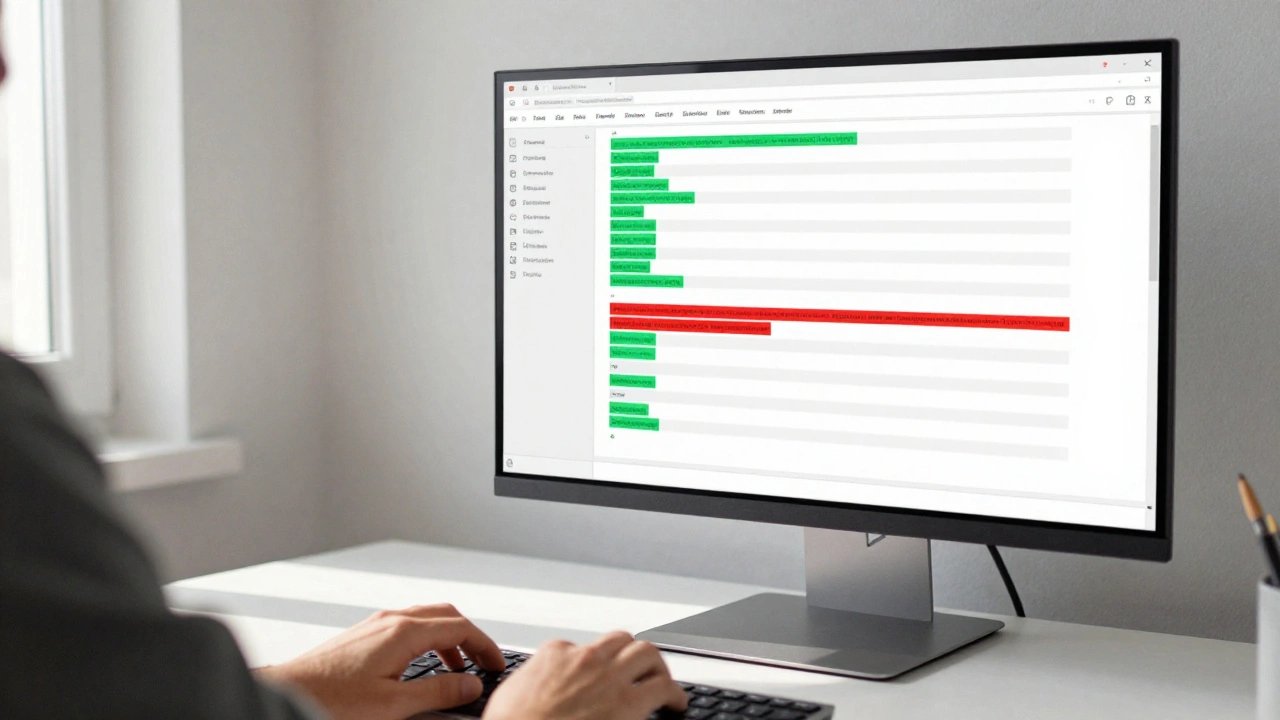
- Visual Cues: Red backgrounds indicate deleted text, while green backgrounds highlight new additions.
- Granularity: You can compare any two versions of a page, even if they were written years apart.
- Efficiency: Use the "Compare selected revisions" feature to skip unnecessary intermediate edits.
- Verification: Every single character change is tracked, making it a powerful tool for fighting misinformation.
How to Launch the Diff View
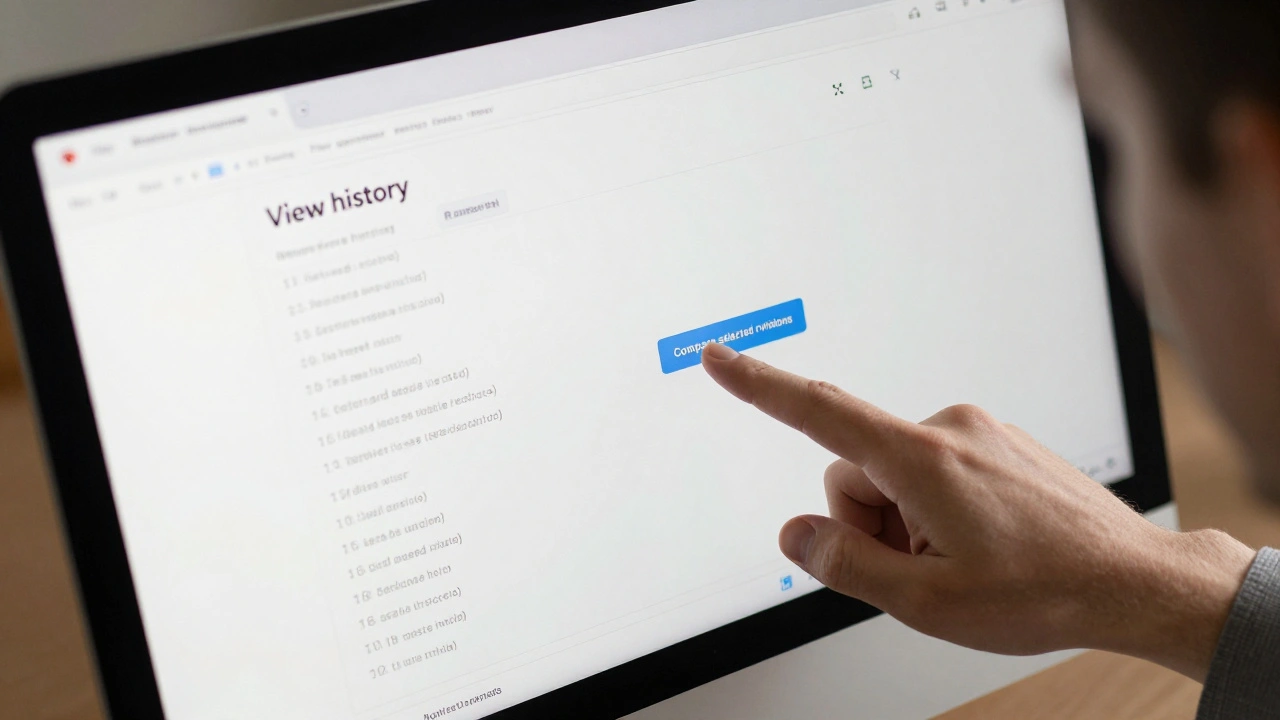
Most people find their way to the diff view by accident, but using it intentionally is where the power lies. Start by clicking the "View history" tab at the top right of any Wikipedia article. You'll see a long list of every edit ever made to that page. To see what changed in a specific edit, simply click the date and time link of that revision. This takes you to a version of the page as it existed at that moment.
To actually see the difference, look at the top of the history list. You'll see two radio buttons labeled "from" and "to." Select the version you want as your starting point and the version you want to compare it against, then click "Compare selected revisions." If you just want to see what the last editor did, simply clicking the timestamp of the most recent edit automatically compares it to the version immediately preceding it.
Decoding the Visual Language of Diffs
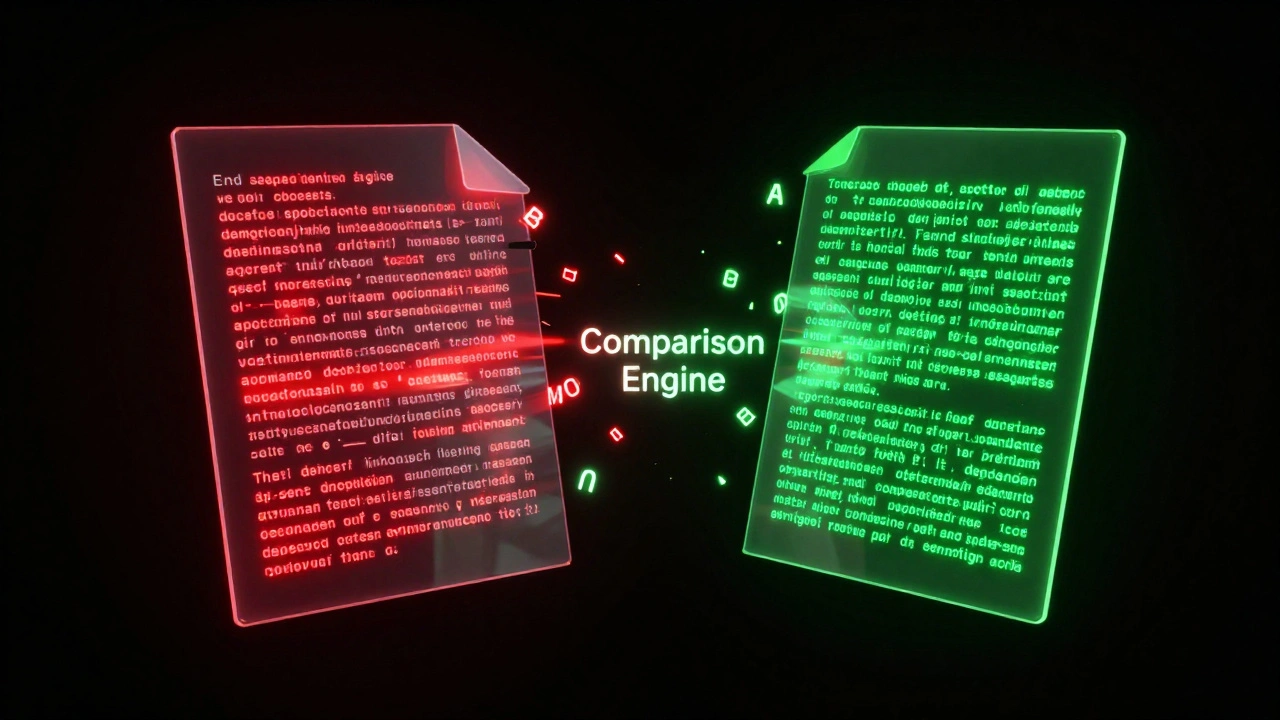
Once you're in the diff view, the page looks like a normal article, but with colorful splotches of text. This is the heart of the tool. The Comparison Engine works by analyzing the text string of two versions. When it finds a mismatch, it marks the old text in red (meaning it was removed) and the new text in green (meaning it was added).
If a whole paragraph is green, the editor added a new section. If a few words are red and a few are green in the same sentence, the editor likely corrected a typo or updated a fact. For example, changing "The population was 5 million" to "The population was 5.2 million" will show "5" in red and "5.2" in green. This precision prevents you from having to re-read the entire paragraph to find a single modified number.
| Color/Indicator | Meaning | Typical Action |
|---|---|---|
| Red Highlight | Deleted Text | Removal of outdated info or vandalism |
| Green Highlight | Added Text | New citations or expanded detail |
| Blue/Grey Lines | Unchanged Context | Provides a frame of reference for the change |
Advanced Techniques for Power Editors
If you are dealing with a page that has thousands of edits, clicking through them one by one is a nightmare. Instead, use the "Filter" tool in the history tab. You can search for specific editors or keywords to narrow down the revisions you need to compare. This is incredibly useful when you're trying to track down a specific piece of deleted information that you know was removed by a certain user.
Another pro tip is utilizing the Revision History search. By filtering for "vandalism" or specific labels, you can jump straight to the diffs that actually matter. If you see a massive block of red text, it's a red flag for potential page-wiping. Conversely, a large block of green text usually indicates a significant content expansion, which is where you should check for the quality of sources.
Handling Complex Changes and Layout Shifts
Sometimes the diff viewer can look a bit messy, especially when a user changes the formatting of a table or moves a large section of text from the bottom of the page to the top. In these cases, the tool might show the entire section as "deleted" from one spot and "added" to another. While it looks like a massive change, it's often just a reorganization.
To handle this, look at the "diff" as a narrative. Ask yourself: did the meaning of the text change, or just the location? If you see the exact same words appearing in red at the bottom and green at the top, you're looking at a Refactor. This is a common practice in high-level editing to improve the flow of an article without altering the actual facts.
Common Pitfalls and How to Avoid Them
A common mistake beginners make is ignoring the "context" lines. The diff viewer shows you a few lines of unchanged text above and below a change. If you only look at the green and red parts, you might miss the nuance of where the change happened. Always read the surrounding sentences to ensure the new addition actually fits the flow of the paragraph.
Another issue is "diff noise." This happens when an editor changes the indentation of a list or adds a few spaces. These changes are technically "diffs," but they don't add any value to the reader. Experienced editors often skim past these minor white-space changes to focus on the substantive modifications. If you find yourself overwhelmed by tiny changes, check if the editor was simply cleaning up the Wikitext (the markup language Wikipedia uses) rather than the content itself.
Connecting the Dots: Version Control and Trust
The diff viewer is a manifestation of Version Control. Much like how developers use Git to track code changes, Wikipedia uses a database of revisions to ensure that no information is ever truly lost. If an editor accidentally deletes a crucial paragraph, any user can go back into the history, find the diff where the deletion occurred, and restore the text.
This transparency is what builds trust in the platform. Because every single change is public and visible via the diff tool, it creates a self-correcting ecosystem. When you use the diff viewer, you aren't just looking at text; you're auditing the evolution of a fact. This process of constant comparison is why Wikipedia can remain relatively accurate despite being open to anyone with an internet connection.
Can I compare versions from different years?
Yes. In the "View history" tab, you can select any two versions regardless of how far apart they are in time. Simply check the boxes for the two specific revisions you want to compare and click the "Compare selected revisions" button.
What does it mean if a change is highlighted in red but there is no green text?
This indicates a pure deletion. The editor removed that specific text without replacing it with anything new. This is common when removing redundant phrases or deleting incorrect information.
Is the Diff Viewer available on the mobile app?
The mobile experience is slightly different. While you can view the history, the full side-by-side or highlighted diff view is most powerful on the desktop site. For deep auditing, it is highly recommended to use a desktop browser.
How do I tell if a change was made by a bot?
In the history list, bots are usually identified by a "(bot)" tag next to their username. When you view the diff for a bot edit, you'll often see many small, repetitive changes (like fixing commas or updating links) across the entire page.
Can I revert a change after seeing it in the diff view?
Absolutely. Once you identify a problematic change in the diff view, you can go back to the history page and click "undo" next to that specific revision, or select a previous stable version and save it as the current one.
Next Steps for Improving Your Editing Workflow
If you've mastered the basic diff view, try these scenarios to sharpen your skills:
- The Vandalism Hunt: Find a page that was recently "protected" and look at the diffs just before the protection happened to see what the conflict was.
- The Source Audit: Compare a version of a page from five years ago to today. Notice how the "green" additions are usually more citations and detailed footnotes, showing the growth of the article's credibility.
- The Cleanup Sprint: Use the diff viewer to identify "noise" (extra spaces, bad formatting) and use the "Edit" button to clean up the Wikitext for others.